

Table of contents:
As the company Owner, you can set a company-wide date and time format that applies to all timestamps displayed in Gridly. Members can override this format through their user preferences or database datetime settings. Datetime columns also have independent format settings.
To access datetime settings, click Info in the left-hand side menu. Scroll down to the Datetime settings section.
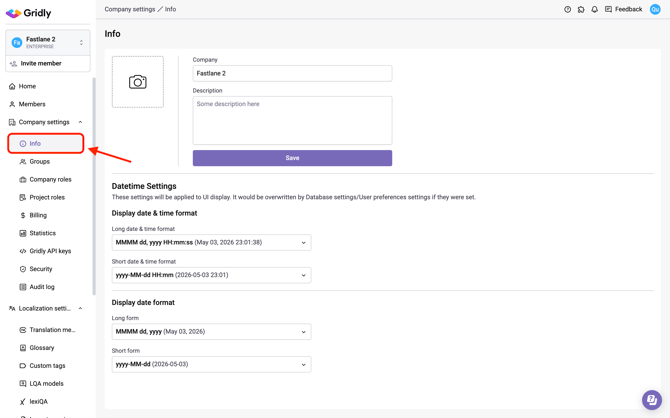
Display date & time format
Controls how timestamps are displayed throughout Gridly (for example, in audit logs and record history). Select a format from the Long date & time format and Short date & time format dropdowns.
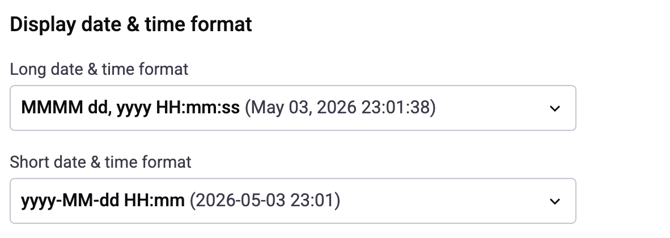
Long date & time format
| Format | Example |
|---|---|
MMMM dd, yyyy HH:mm:ss |
May 03, 2026 22:25:42 |
EEEE, dd MMMM yyyy 'at' h:mm:ss a |
Sunday, 03 May 2026 at 10:25:42 PM |
dd MMMM yyyy, h:mm:ss a |
03 May 2026, 10:25:42 PM |
Short date & time format
| Format | Example |
|---|---|
yyyy-MM-dd HH:mm |
2026-05-03 22:25 |
dd/MM/yyyy HH:mm |
03/05/2026 22:25 |
MM/dd/yyyy, h:mm a |
05/03/2026, 10:25 PM |
dd MMM yyyy, h:mm a |
03 May 2026, 10:25 PM |
Display date format
Controls how dates are shown in contexts where time is not included. Select a format from the Long form and Short form dropdowns.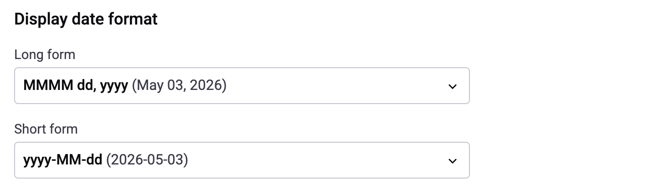
Long form
| Format | Example |
|---|---|
MMMM dd, yyyy |
May 03, 2026 |
dd MMMM yyyy |
03 May 2026 |
EEEE, dd MMMM yyyy |
Sunday, 03 May 2026 |
Short form
| Format | Example |
|---|---|
yyyy-MM-dd |
2026-05-03 |
dd/MM/yyyy |
03/05/2026 |
MM/dd/yyyy |
05/03/2026 |
dd MMM yyyy |
03 May 2026 |