

Table of contents:
User Preferences in Gridly allows you to customize your personal experience when working with Grids. User Preferences are specific to your account and do not affect other team members.
Accessing User preferences
- Click on your profile icon in the top-right corner.
- Select My profile from the dropdown menu.
- Navigate to the User preferences tab.

Customizing your User preferences
Gridly provides several settings to personalize your experience working in Grids. Each setting can be enabled or disabled according to your preference.
Automatically apply default view when Grid opened
When enabled, this setting automatically applies the Default view whenever you open a Grid, regardless of any previously saved view.

- Enable this to always start with the Default view across all Grids. In this example, Gridly displays the Default View regardless of the last opened view, which is the Translator View.

- Disable if you prefer Gridly to remember your last saved view for each Grid. This is useful if you have a dedicated view to work on. In this example, Gridly remembers the Translator View as the last opened view and will display it when you open this Grid again.

Show translation suggestion
This setting controls whether Gridly displays suggestions from Translation Memory, Glossary, and Non-Translatable Lists when you select a cell.

- Enable this setting if you want to have quick access to these localization resources.

- Disable if you don't need quick access to these localization resources upon cell selection. To receive localization suggestions, go into edit mode by double-clicking a cell.

Bypass spellcheck from browsers for localization cells
This setting turns off the browser's built-in spell checker for CMS Grids and the CAT Editor to prevent conflicts.

- Enable this setting if you experience errors with your browser's spell checker. In this example, you can see there is no red dashed underline, meaning the browser's spell checker is off.

- Disable if you prefer to use your browser's built-in spell checker and don't experience any conflicts.

You can use Gridly's Spelling and grammar check instead of the browser's default spell checker.
Datetime settings
By default, Gridly displays dates and times using the format set by your company Owner or database-level datetime settings. You can override these with your own preferred format.
To use a custom format, toggle on Use my custom format and configure the following settings:
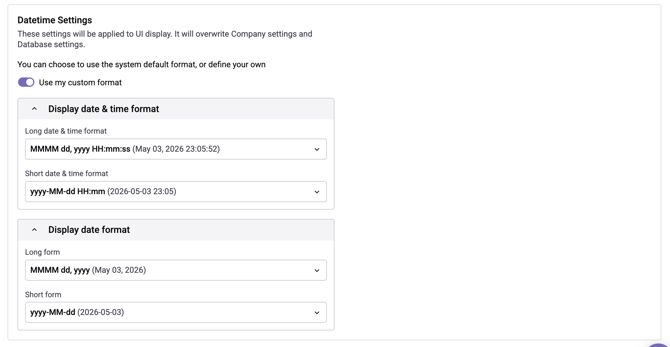
Display date & time format: Controls how timestamps are displayed throughout Gridly (for example, in audit logs and record history).
-
Long date & time format
| Format | Example |
|---|---|
MMMM dd, yyyy HH:mm:ss |
May 03, 2026 22:25:42 |
EEEE, dd MMMM yyyy 'at' h:mm:ss a |
Sunday, 03 May 2026 at 10:25:42 PM |
dd MMMM yyyy, h:mm:ss a |
03 May 2026, 10:25:42 PM |
-
Short date & time format
| Format | Example |
|---|---|
yyyy-MM-dd HH:mm |
2026-05-03 22:25 |
dd/MM/yyyy HH:mm |
03/05/2026 22:25 |
MM/dd/yyyy, h:mm a |
05/03/2026, 10:25 PM |
dd MMM yyyy, h:mm a |
03 May 2026, 10:25 PM |
Display date format: Controls how dates are shown in contexts where time is not included.
-
Long form
| Format | Example |
|---|---|
MMMM dd, yyyy |
May 03, 2026 |
dd MMMM yyyy |
03 May 2026 |
EEEE, dd MMMM yyyy |
Sunday, 03 May 2026 |
-
Short form
| Format | Example |
|---|---|
yyyy-MM-dd |
2026-05-03 |
dd/MM/yyyy |
03/05/2026 |
MM/dd/yyyy |
05/03/2026 |
dd MMM yyyy |
03 May 2026 |