
Columns in Gridly can be configured with different data types to match the content you're working with. When creating or editing a column, you can select from several categories of data types to ensure your data is properly formatted and validated.
Set column data types
For new columns, click on the + button on the header to create a new column and set its data type.

For existing columns:
- Right-click on a column header and select Column Properties
- In the Data type dropdown, select the appropriate type for your content
- Configure any additional settings specific to that data type
- Click Save to apply the changes

The icon in the header (next to the column name) displays which type of data the column contains.

Column data types
There are 4 groups of column data types in Gridly CMS:
- Special data types
- Basic data types
- Code formatting data types
- System columns
Special data types
Localization
The Localization data type is designed specifically for translation workflows. Use this to designate columns as source or target languages.
- Select Localization from the data type dropdown.
- Under Localization type, select Source language or Target language.
- Click Save.

Formula
Formula columns enable powerful calculations and data manipulation using expressions that combine column values, numbers, strings, and built-in functions. Formulas automatically update when referenced data changes, making them perfect for dynamic calculations and automated content generation.
- Select Formula from the data type dropdown.
- Configure these settings:
- Insert formula: Gridly provides over 80 built-in functions for mathematical operations, string manipulation, date/time handling, logical comparisons, and more. See the complete formula list.
- Formula value format: Select whether the returned value from the formula is an array or a single value, Gridly will format the value accordingly.
- Click Save.

Reference
- Select Reference from the data type dropdown.
- Refer to this guide to configure the column and learn how it works: Reference Column.
- Click Save.

Basic data types
Text data types
- Multiple lines: Ideal for longer text content that may span multiple lines, such as descriptions or paragraphs.
- Single line: Use for short text entries that don't require line breaks, such as titles, names, or brief descriptions.
- Rich text: Provides full text formatting capabilities including bold, italic, links, and other rich formatting options. Perfect for content that needs visual emphasis or structure.
- Markdown: Supports Markdown syntax for technical documentation or formatted text.
Files
Select this data type to be able to add files to a column (i.e. images, video, or audio files). You can add a file by drag-and-drop directly to a cell from your computer.
Audio and video files can be played in the user interface of Gridly. All common types of multimedia files are supported and a built-in player is available for play control.
Learn more in this article: Manage digital assets.
Number
Restricts input to numeric values only, preventing non-numeric characters from being entered. Useful for quantities, prices, scores, or any numerical data.
Single selection
Creates a dropdown menu where users can select one option from a predefined list.
- Select Single selection from the data type dropdown.
- Click + Add Option to create your first choice.
- Enter the option text and choose a color for visual distinction.
- Add additional options by pressing Enter or clicking + Add Option.
- Click Save when finished.

Multiple selection
Creates a dropdown menu where users can select multiple options from a predefined list.
- Select Single selection from the data type dropdown.
- Click + Add Option to create your first choice.
- Enter the option text and choose a color for visual distinction.
- Add additional options by pressing Enter or clicking + Add Option.
- Click Save when finished.

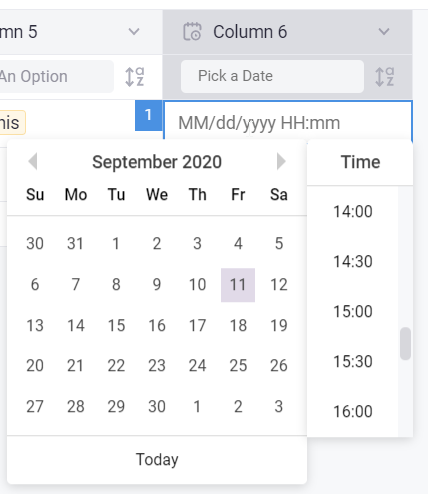
Datetime
Provides date and time picker controls for scheduling, timestamps, or any time-sensitive data.
Boolean
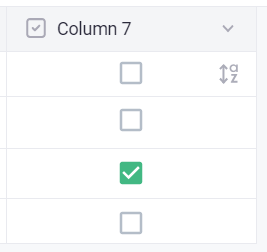
Creates a true/false toggle, perfect for yes/no questions, logic flags, or binary states.
Code formatting data types
These data types provide syntax highlighting and formatting for structured data.
- JSON: Ideal for API responses, configuration data, or any JSON-formatted content. Includes syntax validation and formatting.
- HTML: For HTML markup, web content, or any HTML-formatted text. Provides proper syntax highlighting for tags and attributes.
- YAML: Perfect for configuration files, data serialization, or any YAML-formatted content with proper indentation and syntax support.
System columns
System columns contain automatically generated metadata about your records:
- Record ID: Unique identifier for each record
- Path: File path or location reference. Learn more about Paths.
- Last Modified By: User who made the most recent changes.
- Last Modified Time: Timestamp of the last modification.
- Created Time: When the record was originally created.
- Created By: User who created the record.
System columns are read-only and automatically populated by Gridly.

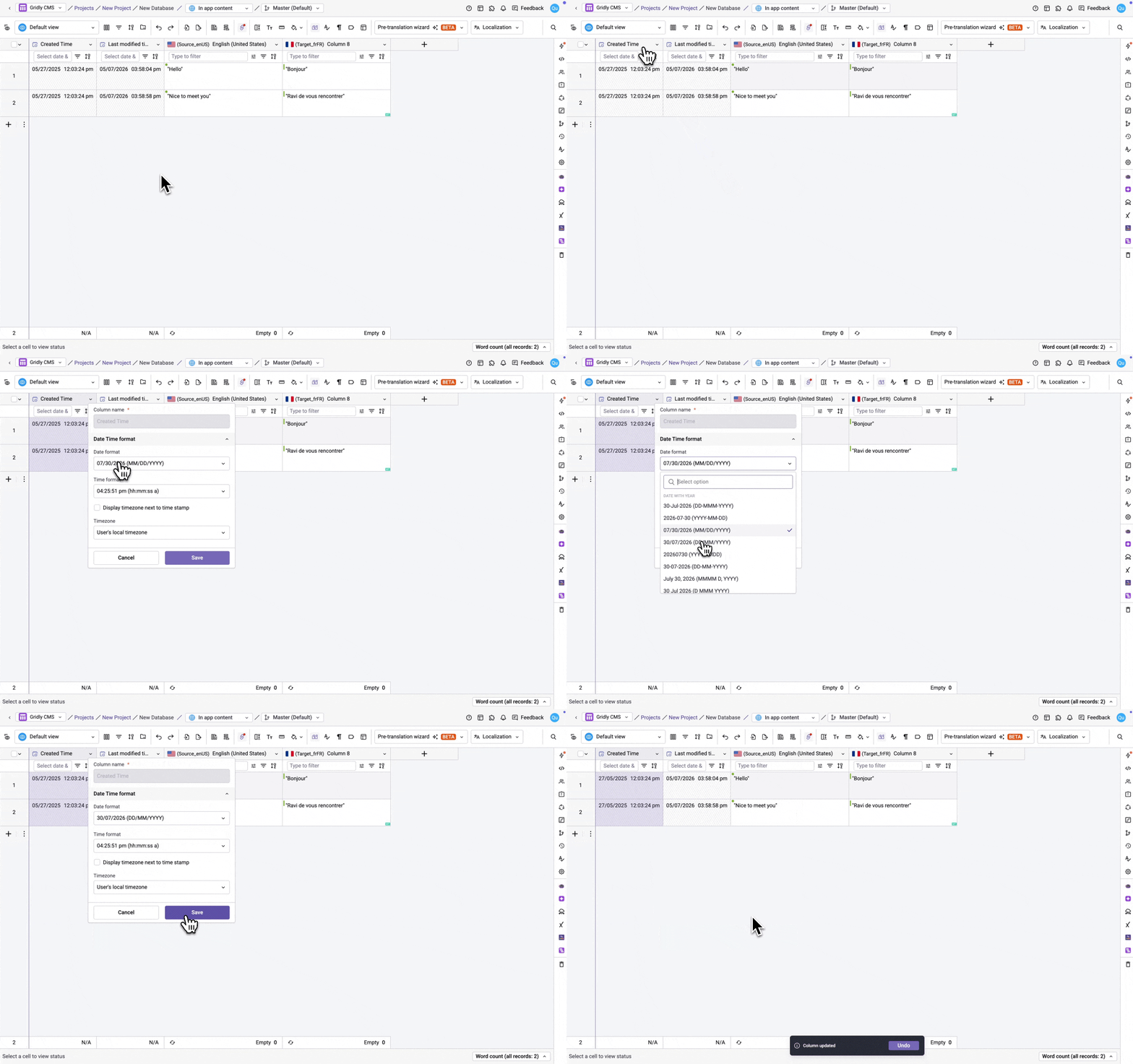
For Created Time and Last Modified Time columns, you can customize how the timestamp displays:
- Right-click the column header and select Column Properties.
- Under Date Time format, configure:
- Date format: Choose how the date portion displays (e.g. MM/DD/YYYY).
- Time format: Choose how the time portion displays (e.g. hh:mm:ss a).
- Display timezone next to time stamp: Toggle on to show the timezone alongside the timestamp.
- Timezone: Select a specific timezone, or keep the default of the user's local timezone.
- Click Save.