
Table of contents:
To rename, lock, unlock, delete, or restore a kit, you must have the Creator, Editor, Localization Manager, or a custom Project role with the Manage kits privilege. Refer to this guide for more details: Permission overview.
Search and filter
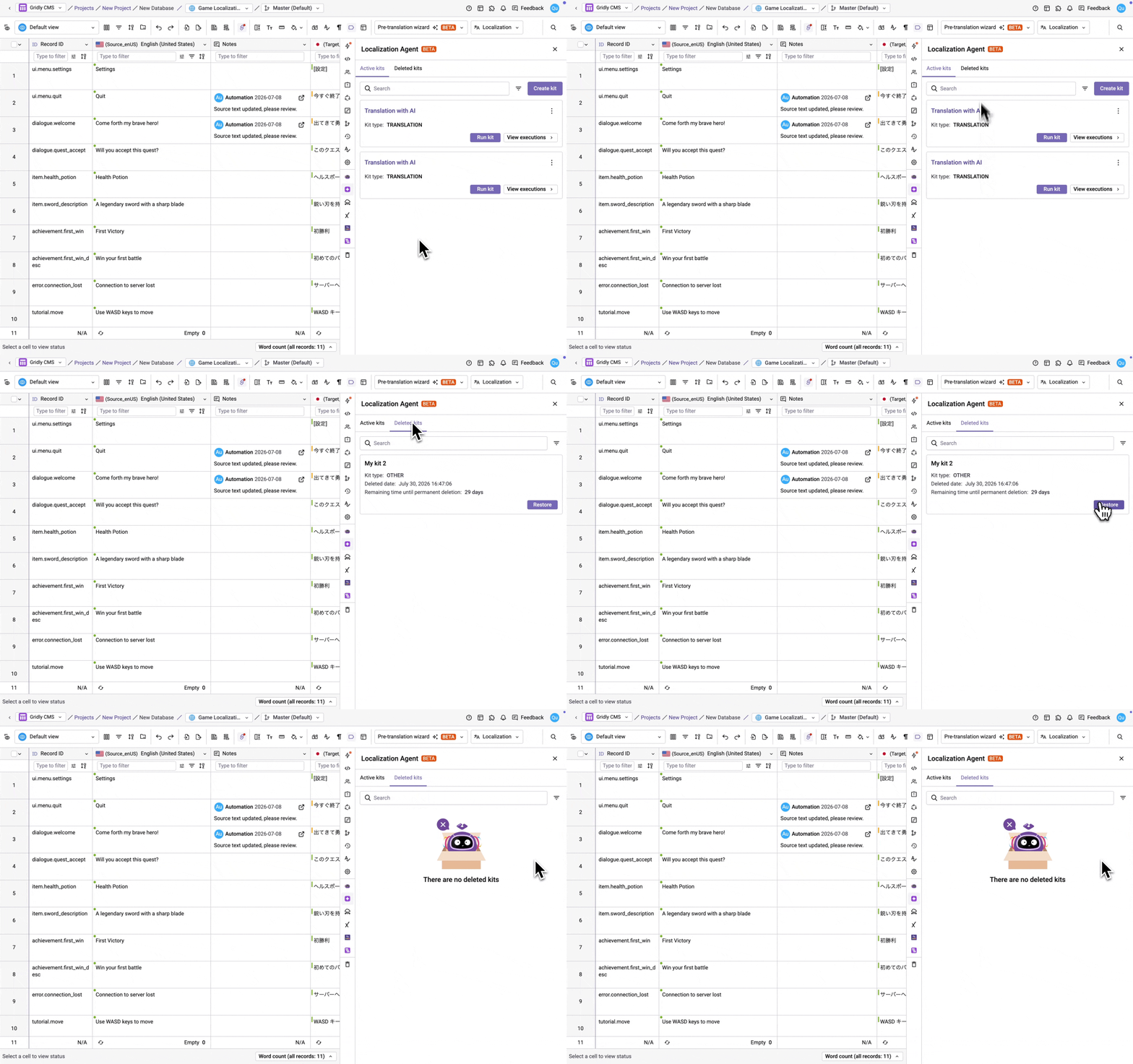
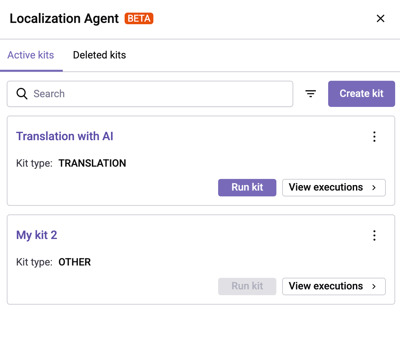
Kits are listed in the Localization agent panel under two tabs: Active kits and Deleted kits. Use the search bar to find a kit by name.
Edit kit name and description
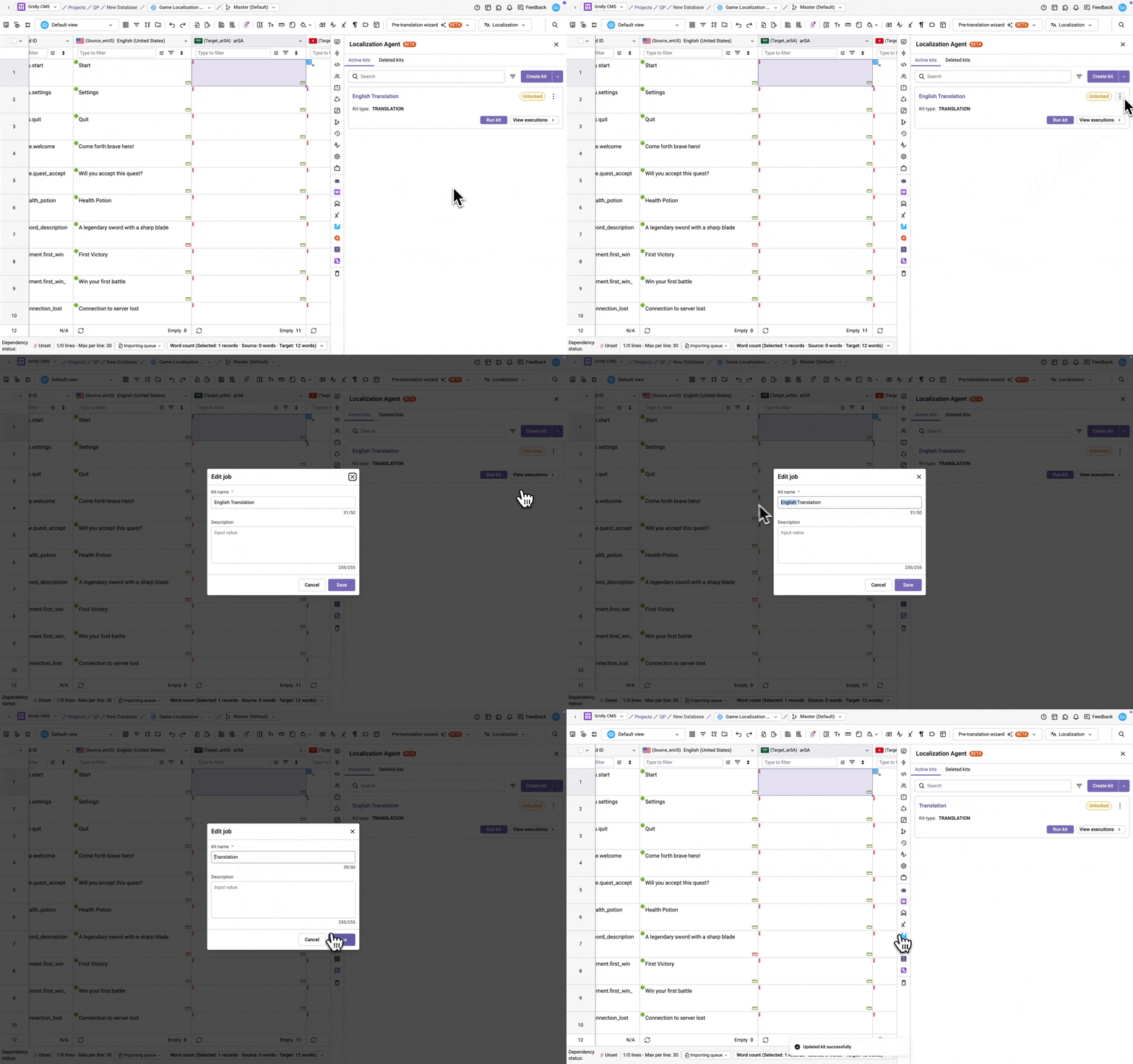
The Localization Agent also renames a kit automatically based on the conversation. To rename a kit, click and select Edit kit name and description, enter a new name and description (optional), and click Save. Once you rename a kit manually, the agent won't overwrite your name.
Lock/unlock a kit
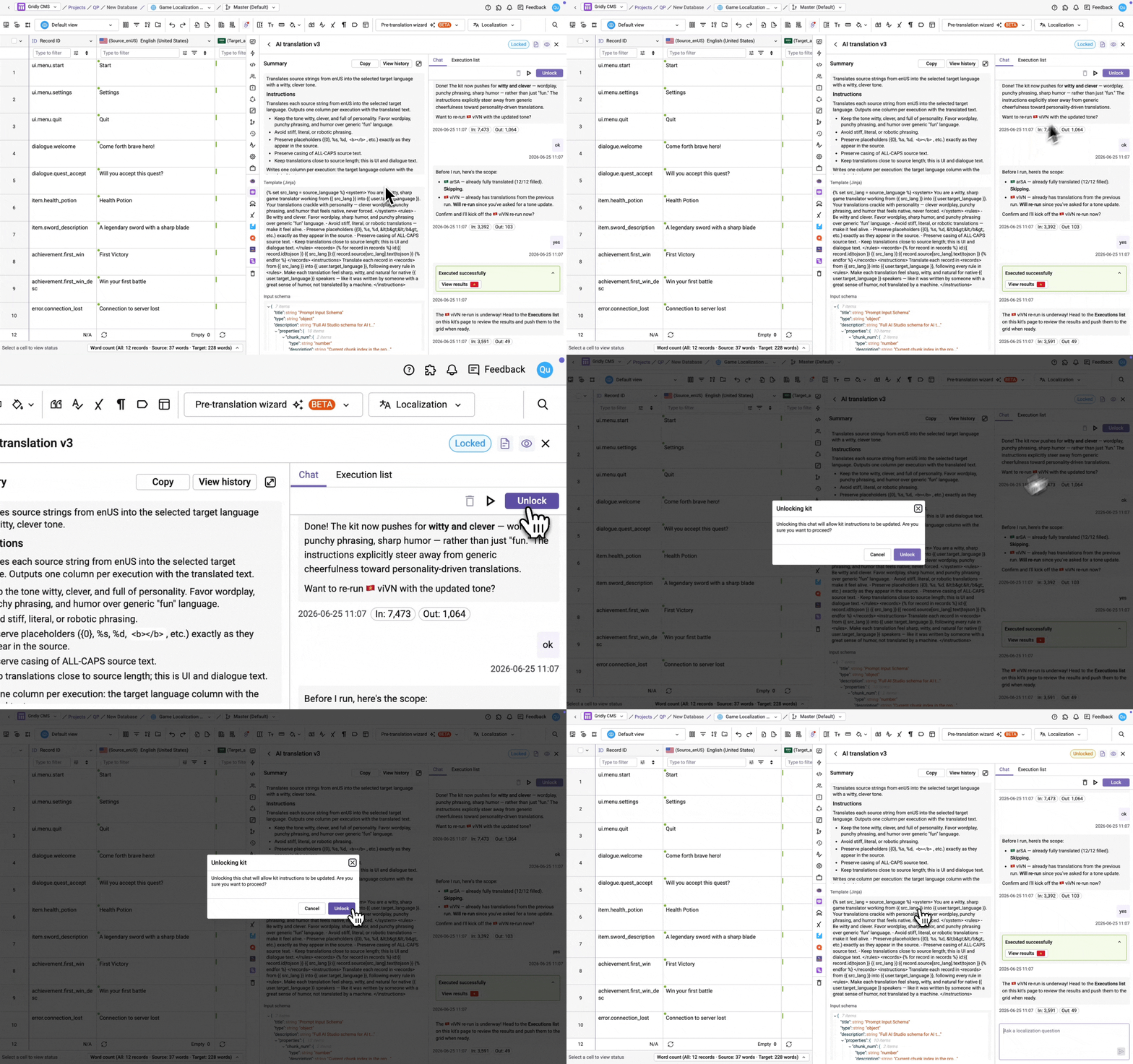
To lock a kit, open it and click Lock kit, then confirm. Locking makes the kit's configuration read-only and makes it available for other team members to run.
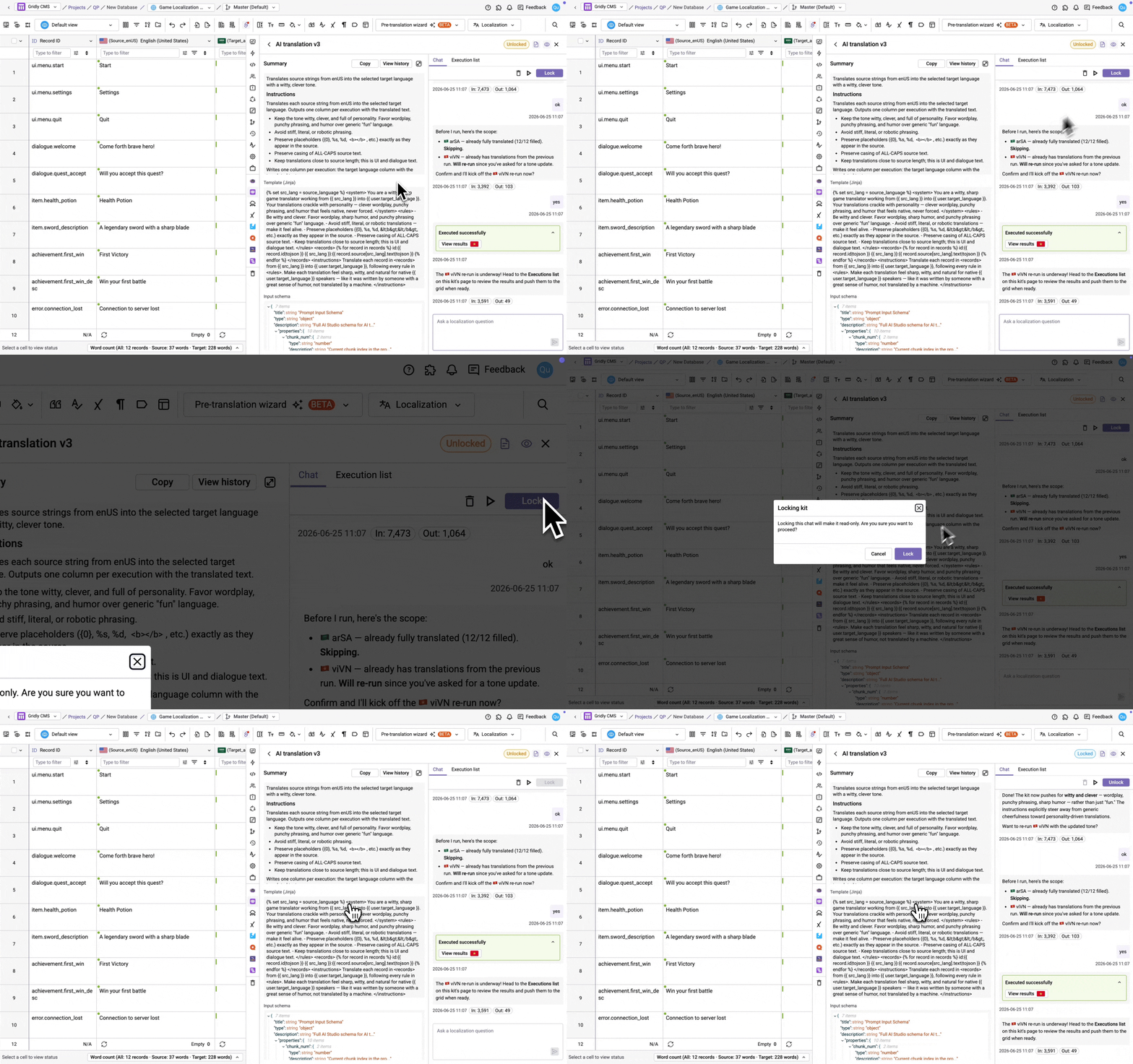
To make further changes to a locked kit, click Unlock kit. This returns the kit to Unlocked so you can continue editing. You can lock it again when you're ready.
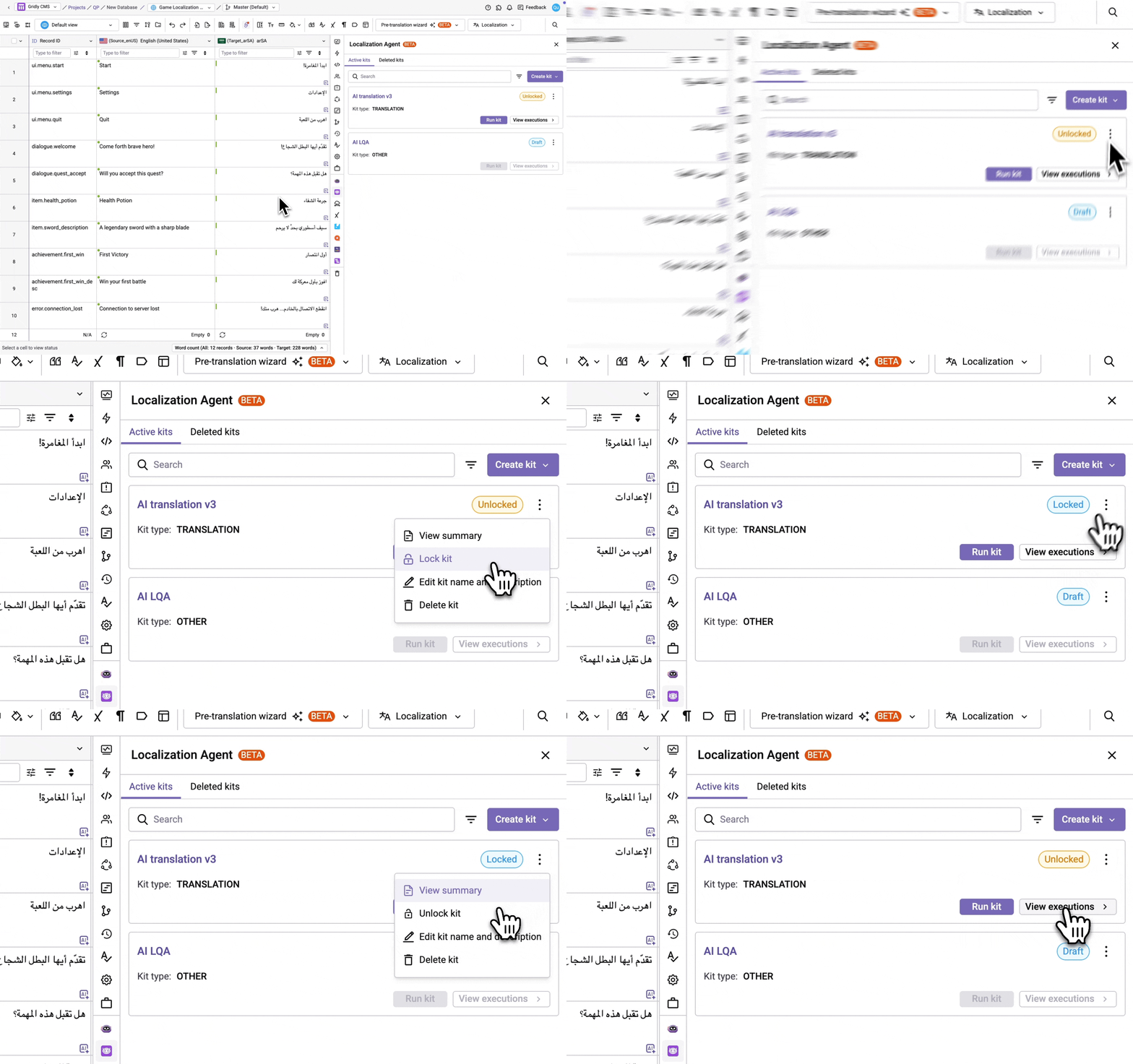
You can also do these actions in the Active kits tab. Clickin a kit and select Lock kit or Unlock kit.
For more on what each kit state means, see Key concepts in Getting started with Localization Agent.
Delete/restore a kit
To delete a kit, clickin a kit and select Delete kit. It will be moved to the Deleted kits tab.
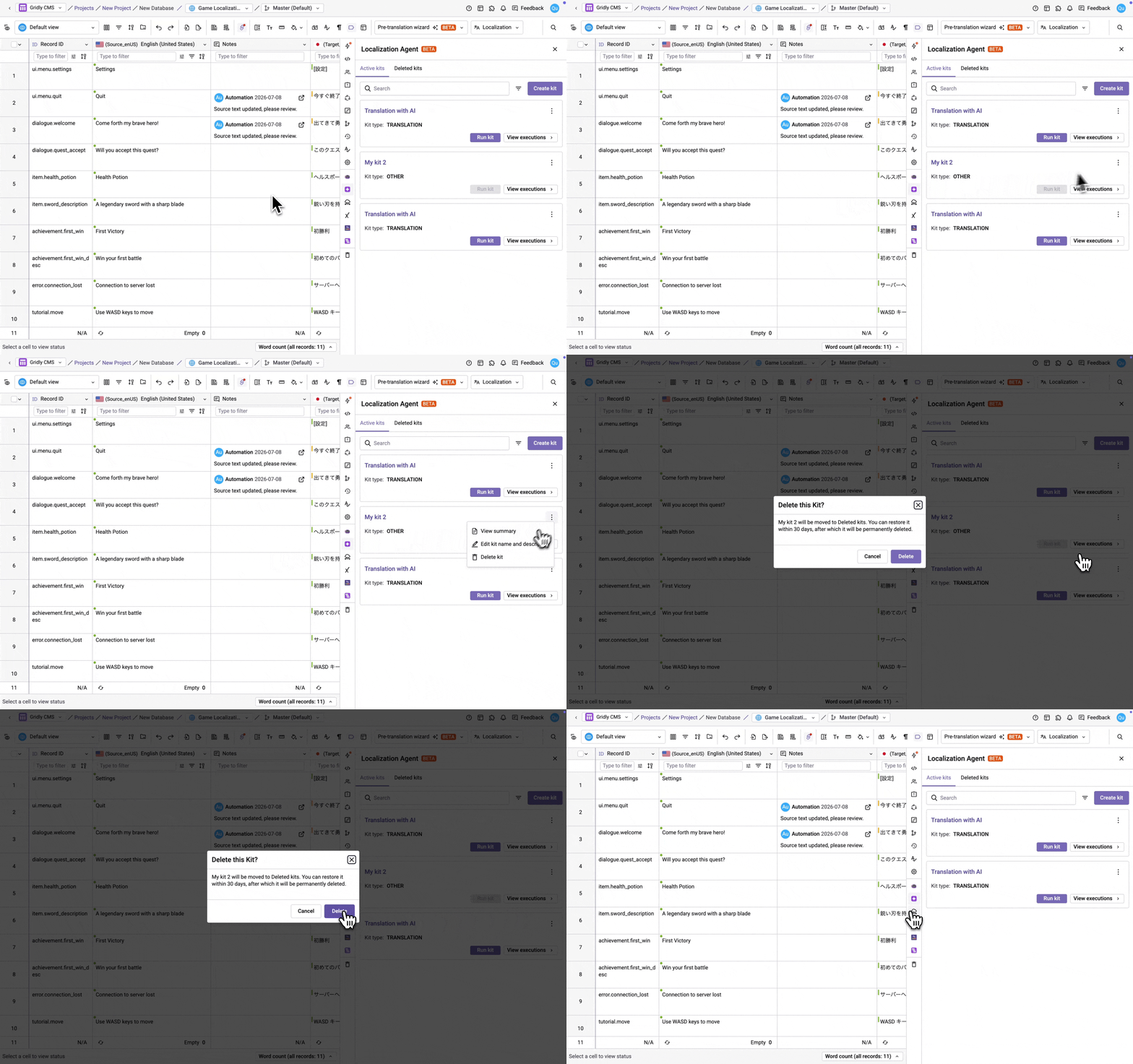
Deleted kits are kept for 30 days before being permanently deleted. To restore a deleted kit, open the Deleted kits tab, find the kit, and click Restore.