

Table of contents:
The Add note automation action automatically appends a note to a Note column when a trigger fires. Use this to log contextual messages against records without manual intervention - for example, stamping a timestamp or trigger detail onto a record whenever source content is updated.
If you are not familiar with creating an automation, please view the following article: Creating an automation.
Not the automation action you need? Check out the full list of all automation actions in Gridly.
This action requires a column with the Note data type in your Grid as the output column. Editing or deleting notes via automation is not supported. Learn more in this article: Column data types.
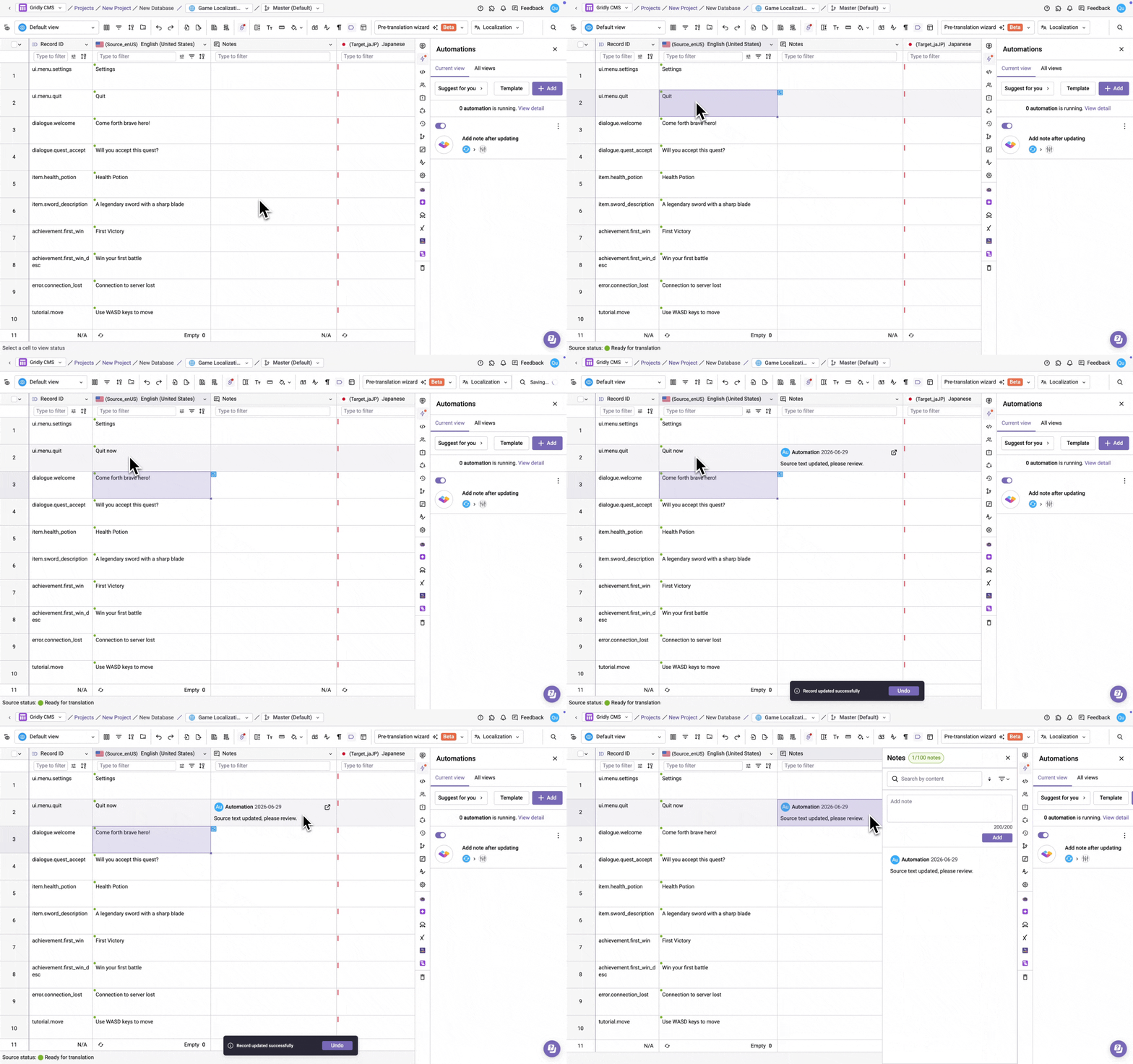
Setup
After creating the automation, you need to configure the trigger and action. In this example, we'll create an automation that adds a note to the Notes column whenever a source language string is updated.
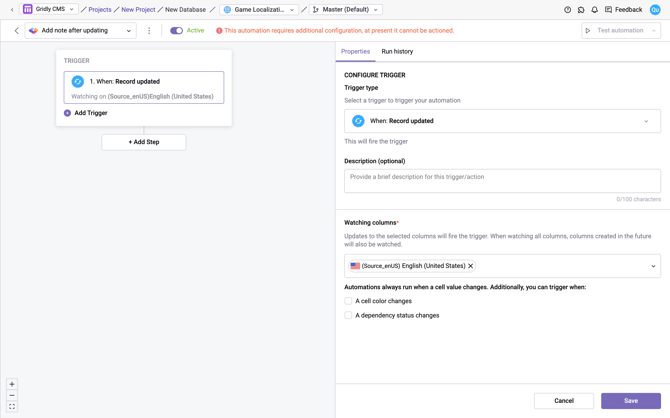
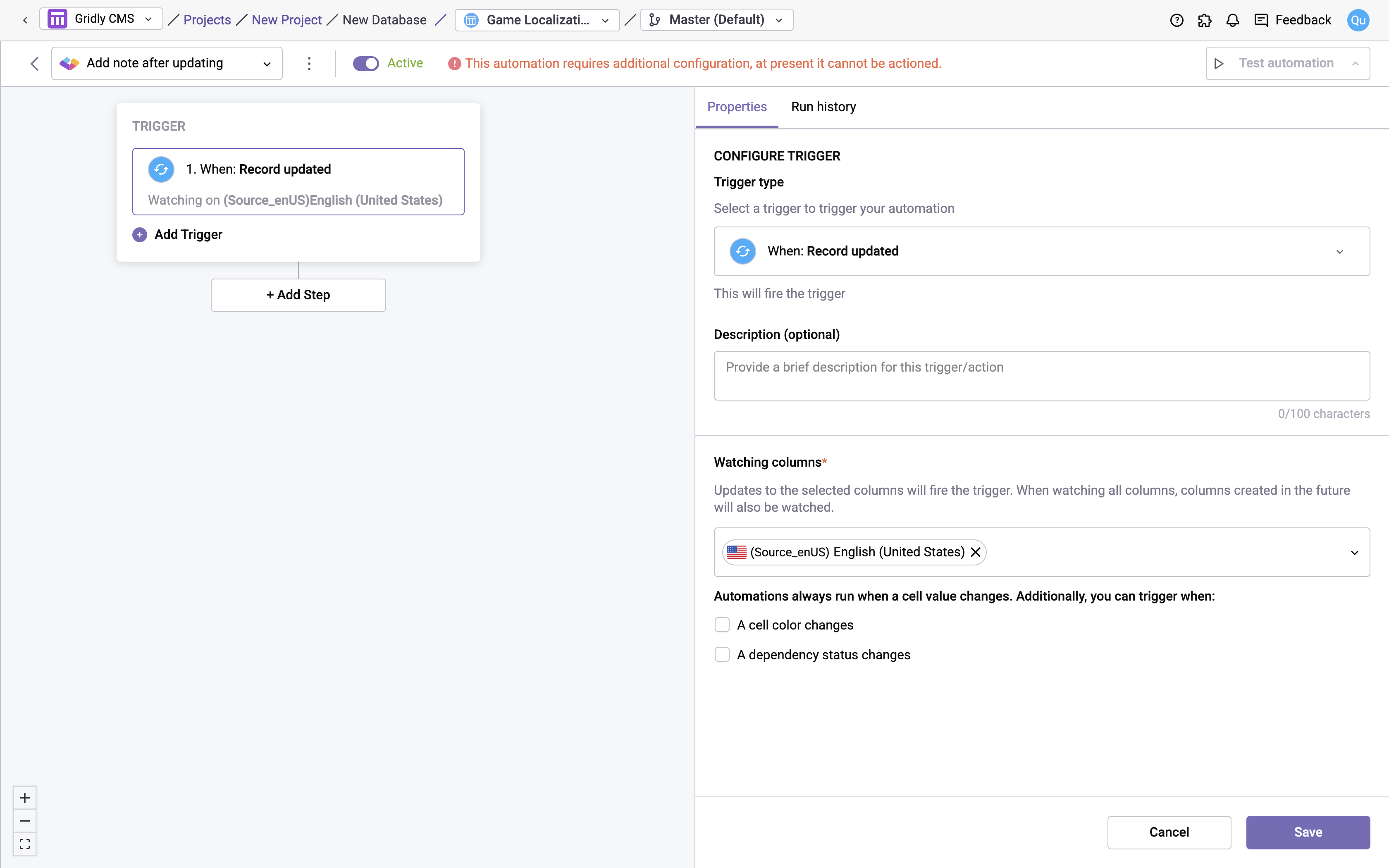
Add trigger
- Click Add Trigger, then select Record updated from the dropdown list.
- In the Watching columns field, select the column you want to watch. We'll select the source language column (Source_enUS) for this example.
Add the Add note action
- Click Add Step and select Add note from the list of actions.
- Configure the following fields:
- Description (optional): Provide a brief description for this trigger/action to help you identify it later (maximum 100 characters).
- Payload: Enter the message text to be written as a note. Click Select input value for action to insert dynamic values from the trigger.
- Select output column to hold the result: Select the Note column where the note will be appended.
- Click Save.
Notes added by automation are authored as System, not as an individual user account.
Test your automation
- Turn on the automation using the switch next to the automation name.
- Click Test automation. If your automation is not turned on, Gridly will require you to turn it on in a pop-up message.
Don't see what you need? Gridly can support custom development for solutions not available out of the box. Contact support@gridly.com to discuss your requirements.