
Table of contents:
In Gridly, you can Back up Database and revert to an earlier version if desired. Now you can even backup and restore on a Grid level.
Your Grids are automatically backed up every day. Plus, you can create a backup of a Grid manually anytime you want and restore data from the past.
Only Admins, Owners, or custom Company roles with CMS Project management privilege are able to back up Grids. Refer to this article: Permission overview.
Back up Grid automatically
A version of the Grid will automatically be backed up:
- When the Database is backed up
- Before a file is imported into the Grid
- Before the Grid is merged (using Branches)
To see all your backups, click 
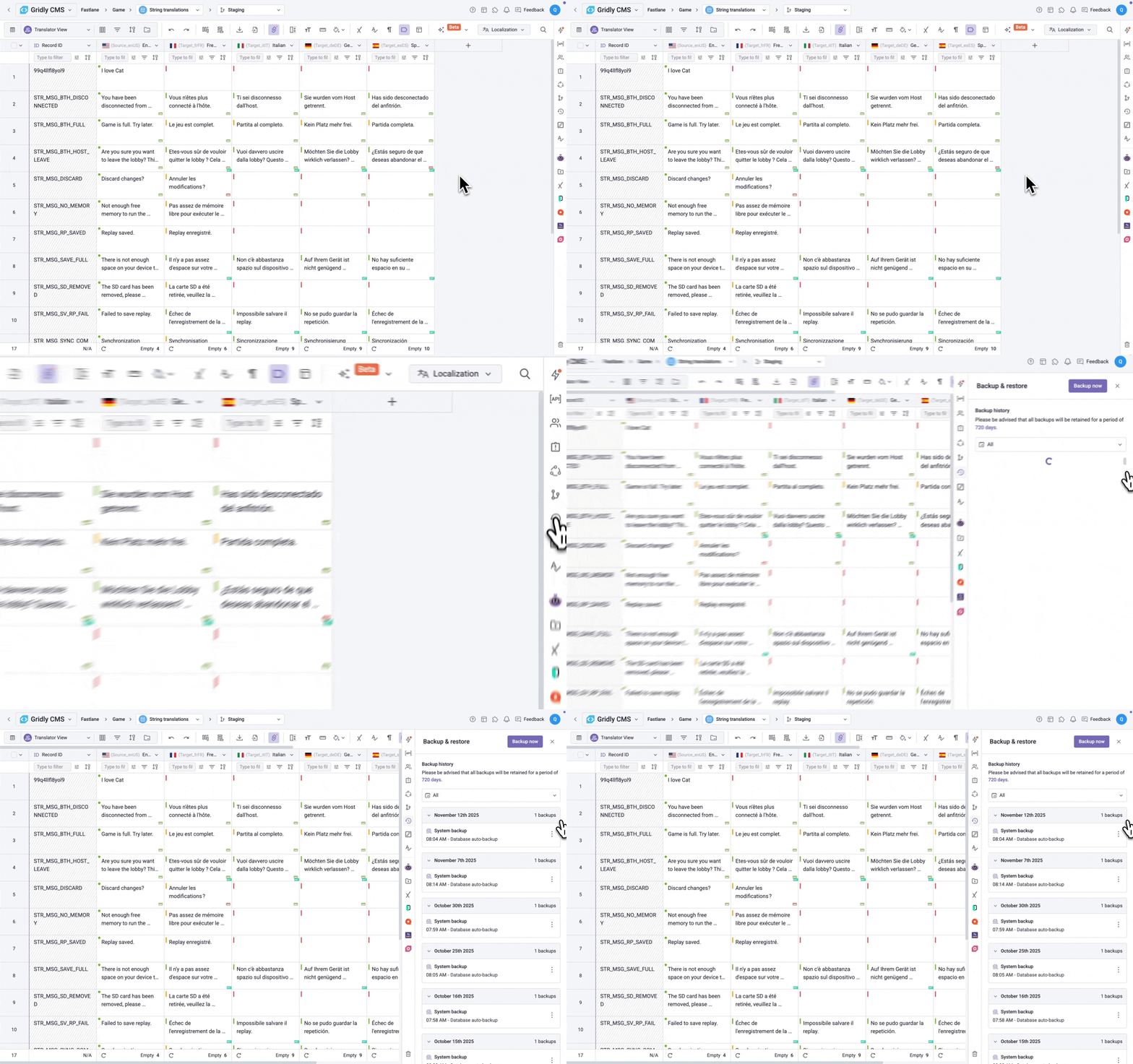
Back up Grid manually
You can also create a backup of a Grid manually anytime you want.
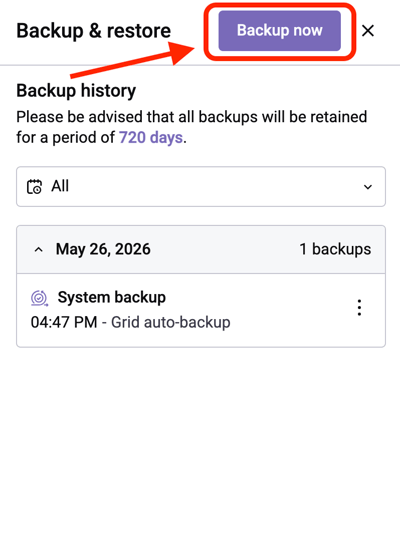
- In a Grid, click
- Click Backup now.
Restore to an earlier version of a Grid
- In a Grid, click
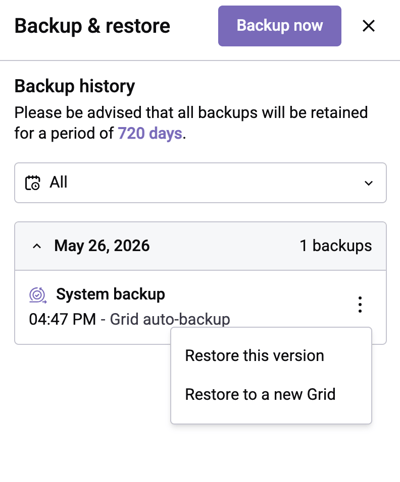
- Click
next to a version timestamp and choose one of the following:
- Restore this version: Replaces the current Grid's data with the selected backup. This only affects the branch you're restoring from and doesn't impact data in other branches.
- Restore to a new Grid: Creates a new Grid populated with the selected backup's data, leaving the original Grid untouched.
- Click Restore to confirm.
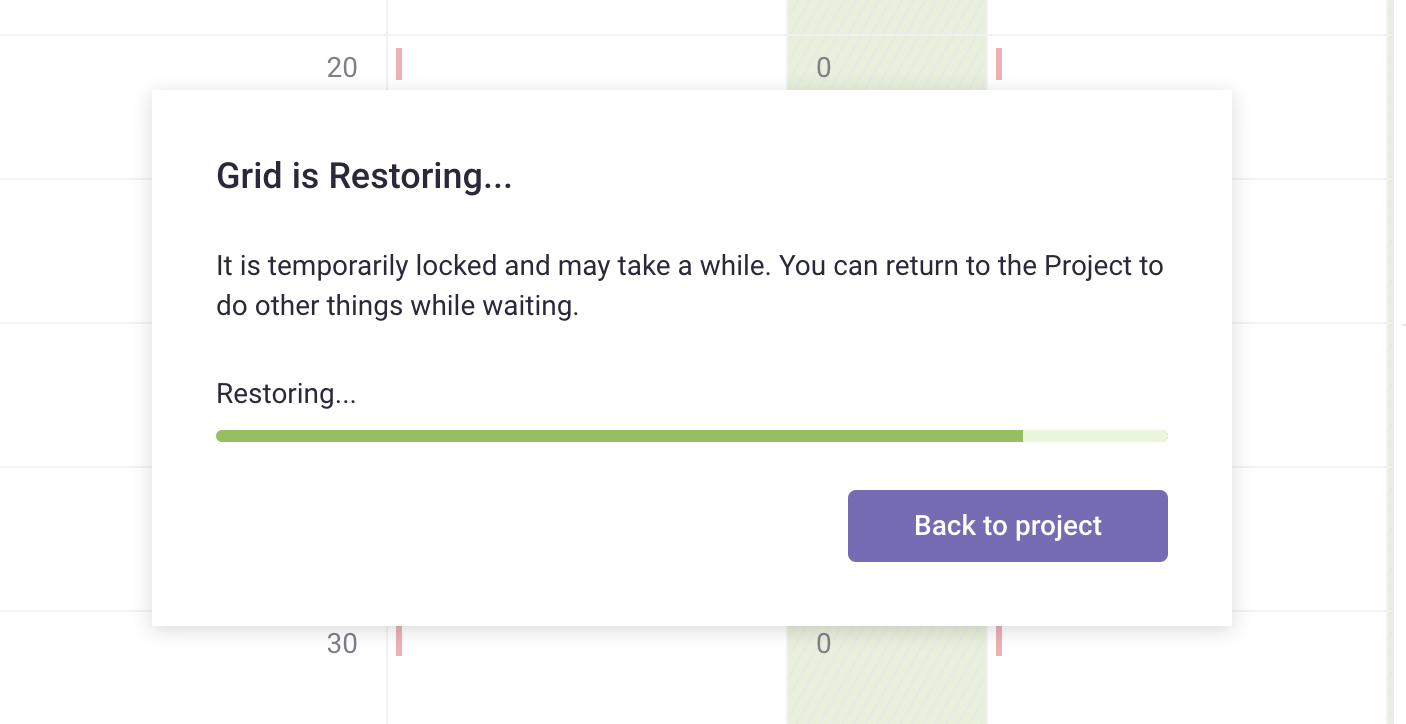
It may take some time for restoration to complete. You can click Back to project and keep working while waiting for the Grid to be restored.