
Table of contents:
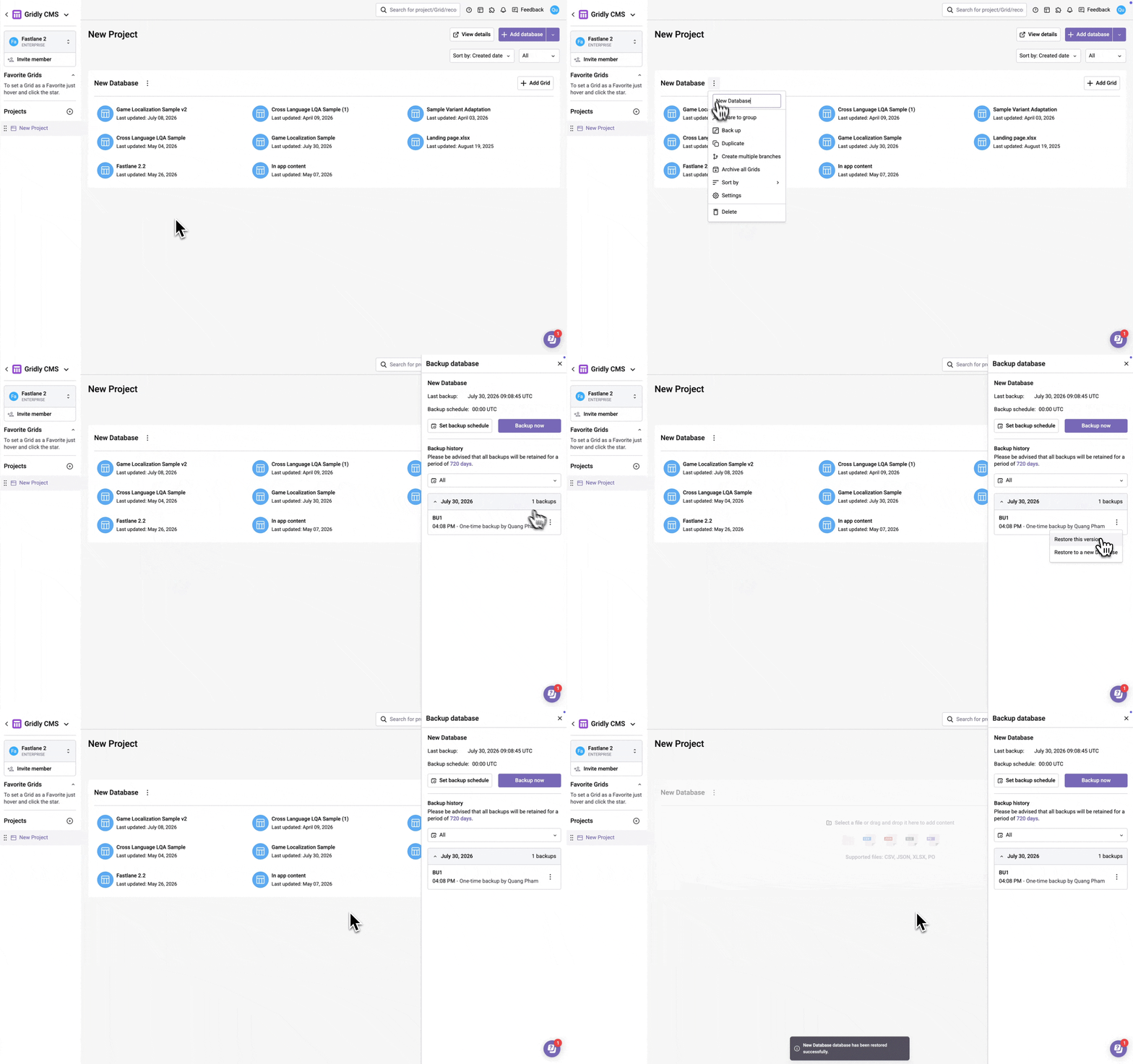
In Gridly, you can back up a Database and revert to an earlier version if desired. Now you don’t have to duplicate Grids and Databases before making important changes.
Only Admins, Owners, or custom Company roles with the CMS Project management privilege are able to back up databases. Learn more in this article: Permission overview.
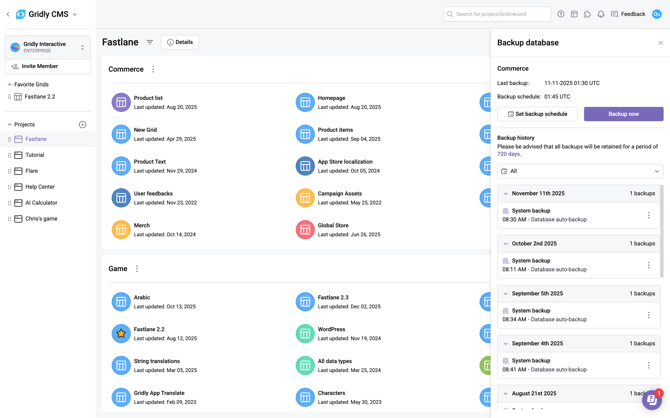
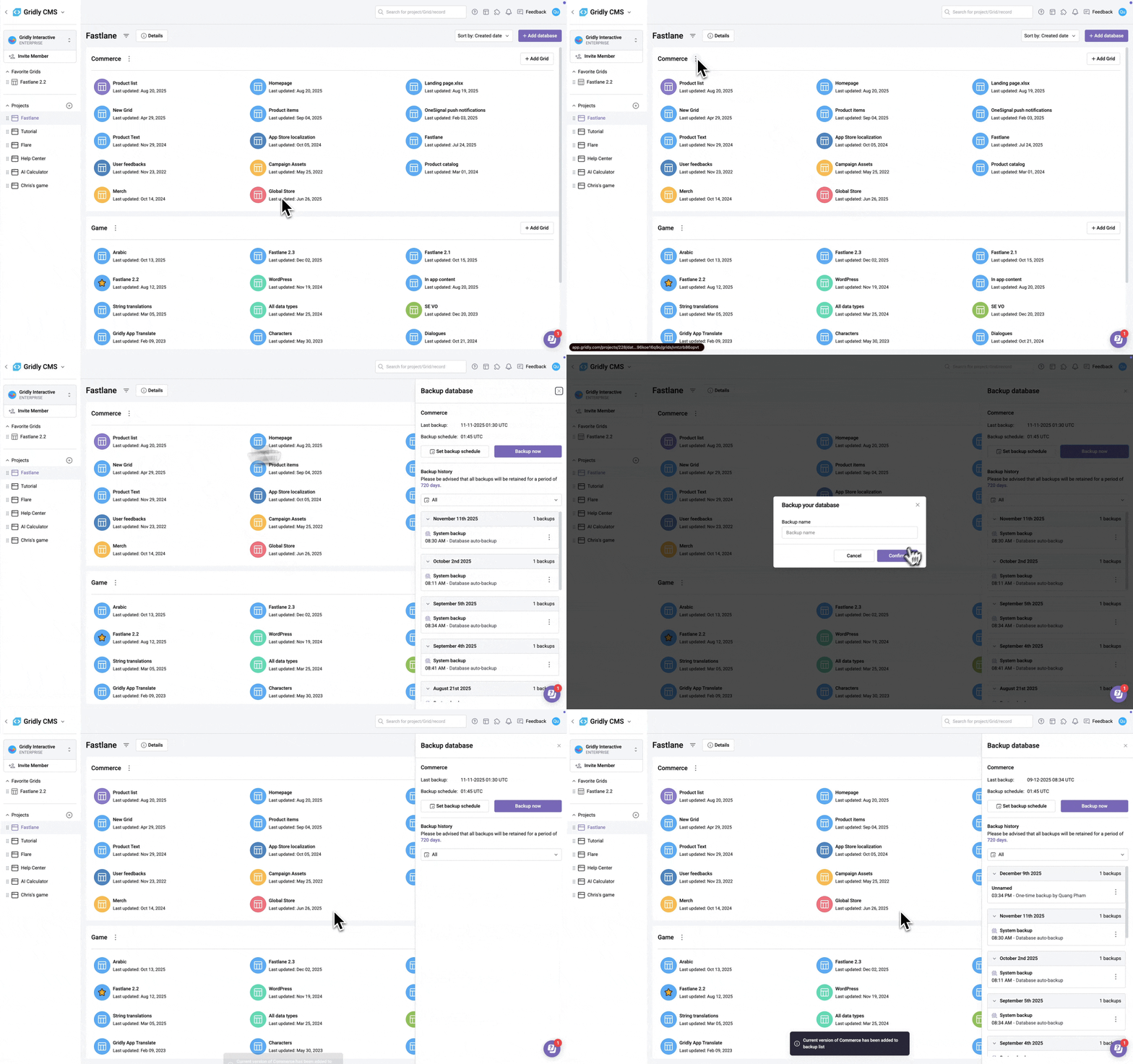
To manually back up your database:
- On the CMS Project page, click
 next to a Database name.
 - Select Back up in the drop down menu.
- Click Backup now in the sidebar. It may take a few seconds for your backup to complete.
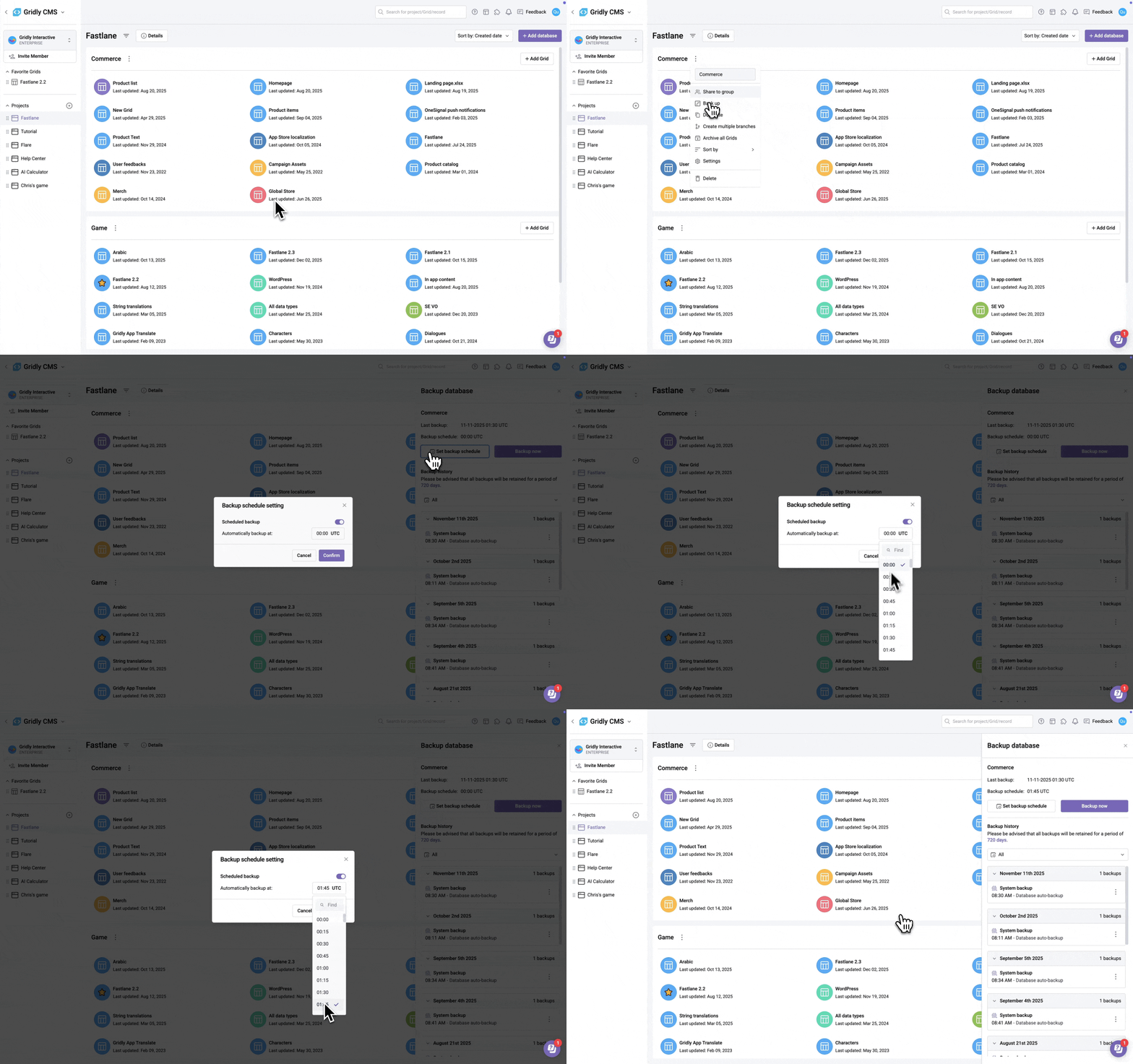
Schedule automatic database backup
Gridly will automatically back up daily at 0am UTC. You can schedule this process to run at a specific time each day. Consider scheduling backups outside of your working hours.
- On the CMS Project page, click next to a Database name
- Select Backup database.
- Click Set backup schedule.
- Set the time for Automatically backup at (in UTC timezone).
- Click Confirm to save your schedule.
Restore database to earlier versions
- On the CMS Project page, click on next to a Database name
- Select Back up in the drop down menu
- Next to a version timestamp, click ⋮ and select one of the following:
- Restore this version: Replaces the current database with the selected backup.
- Restore to a new database: Creates a new database populated with the selected backup's data, leaving the original database untouched.
- Click Restore to confirm.
If you encounter a loading issue while restoring a daily Gridly backup version, please refresh your browser to resolve.