
Table of contents:
- Key concepts
- Setting up a vendor
- Managing vendor members
- What vendor members can access
- Setting up a connection and sharing memoQ projects (for vendor members)
memoQ vendor management lets you create external vendor and invite vendor members to manage memoQ connections on your company's behalf. Vendor members control which memoQ projects are shared with your company - without being counted as billable seats.
This is useful when your translation vendor operates their own memoQ instance. Vendor members share only the memoQ projects relevant to your work while having no visibility into your projects and Grids.
This feature is available on Enterprise plan.
Only Owner, Admin, or a custom Company role with the Manage members permission can create and manage vendors. Learn more in this article: Permission overview.
Key concepts
Vendor: An external organization (typically a language service provider). Each vendor has a name, contact email, and a list of invited members. You can add multiple vendors to your company.
Vendor member: A user invited to represent a vendor. Vendor members are not billed and can only access memoQ connections and settings specific to their vendor. They cannot access projects, Grids, or other company settings unless they are also a regular company member.
Combined access: A user can be both a regular company member and a vendor member at the same time. In that case, they have access to everything their company role grants, plus the memoQ integration and vendor management pages.
Example: An existing company member can access the CMS. If they are also added as a vendor member, they will also see the memoQ integration and memoQ vendor management pages.
Setting up a vendor
Create a vendor
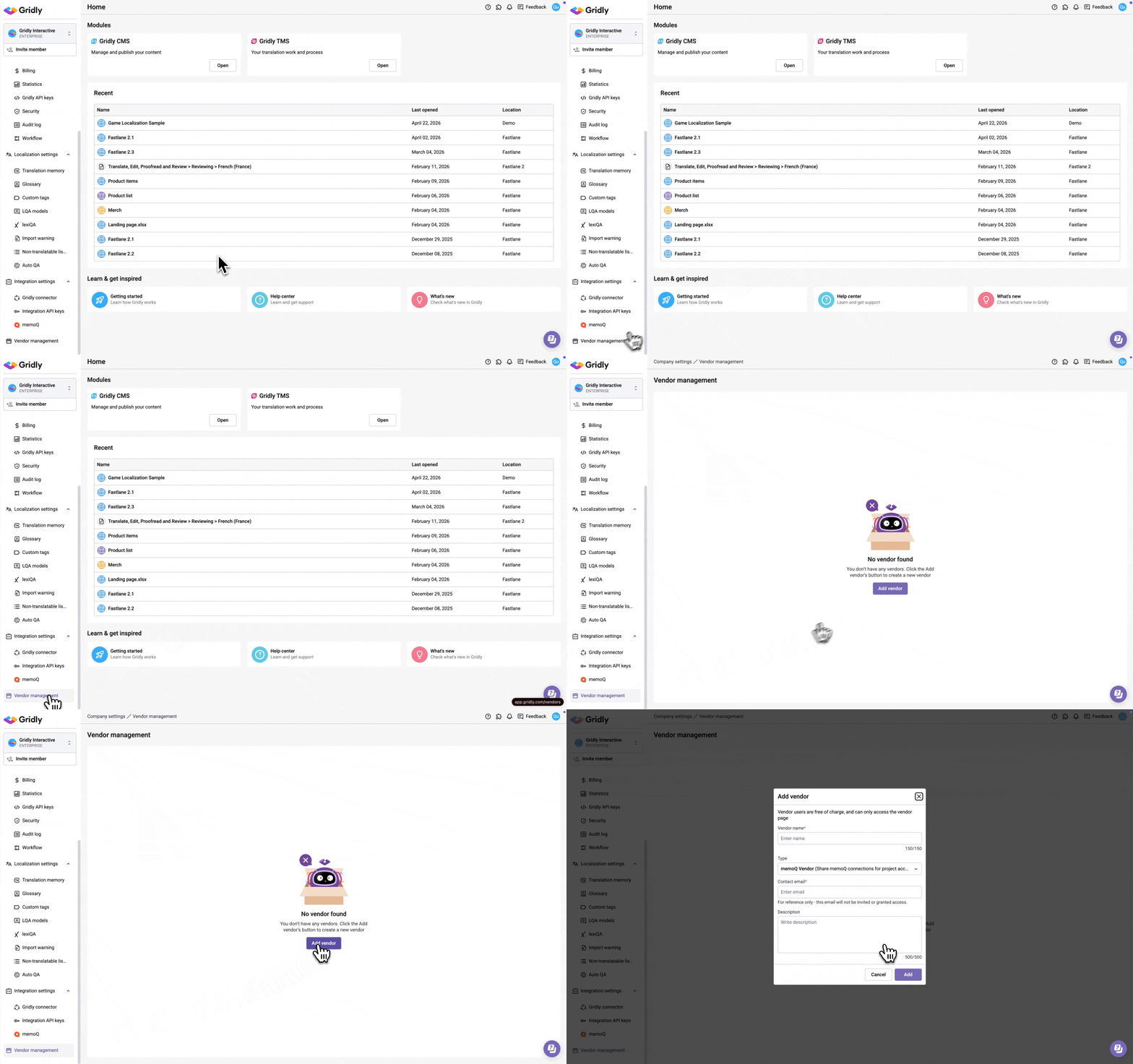
- From Gridly homepage, select Vendor management on the left-hand side menu.
- Click Add vendor.
- Fill in the following fields:
- Vendor name (required): Up to 150 characters.
- Contact email (required): A reference email for the vendor.
- Description (optional): Internal notes, up to 500 characters.
- Type: Select memoQ Vendor.
- Click Save.
The contact email is for reference only and does not grant access automatically. To give someone access, invite them as a vendor member in the Member management tab.
Edit or delete a vendor
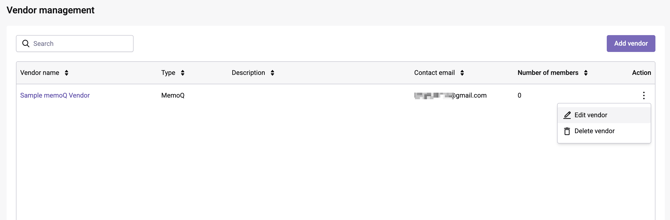
From the vendor list, click  next to the vendor and select an option. Deleting a vendor removes all associated members.
Managing vendor members
Invite a vendor member
- Click on a vendor name to open it.
- Go to the Member management tab.
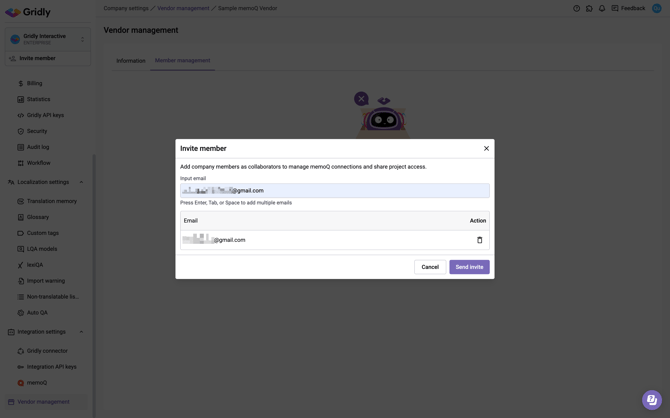
- Click Invite member.
- Enter one or more email addresses. Press Enter, Tab, or Space to add multiple addresses.
- Click Send invite.
Invited users receive an email to accept and set up their account.
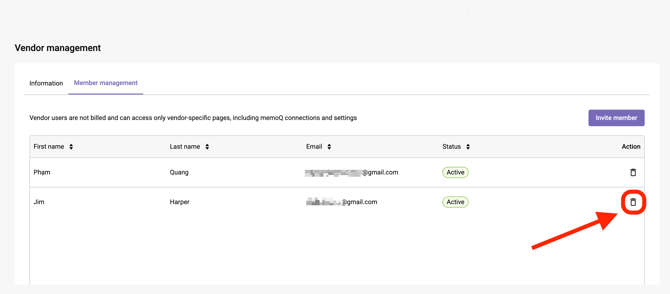
Remove a vendor member
In the Member management tab, click the  icon next to the member. The member immediately loses vendor access.
What vendor members can access
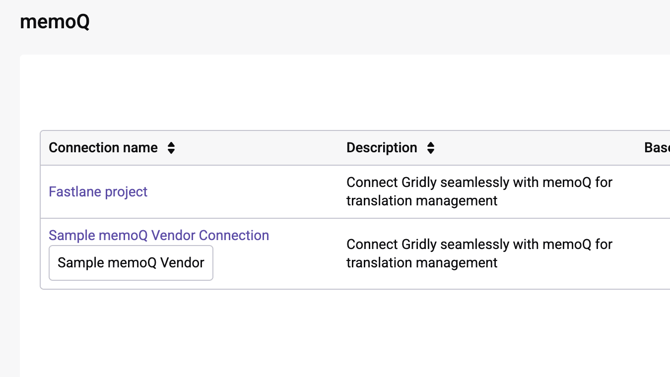
When a vendor member signs in, they can access memoQ integration settings to create and manage memoQ connections. Connections created by a vendor member display the vendor name below the connection name so you can easily identify their source.
Vendor members cannot access projects, Grids, or other company settings unless they are also a regular company member, in which case their access is the combination of both roles.
Vendor member seats are not billed.
Setting up a connection and sharing memoQ projects (for vendor members)
As a vendor member, you have full control over what the client company can see and do through your memoQ connection.
To create a memoQ connection and share projects:
- Go to Integration settings → memoQ.
- Click New connection.
- Enter a Connection name and Description, then click Create.
- In Step 1 Connect to memoQ, follow the on-screen instructions to connect your memoQ instance. Select memoQ cloud or memoQ server from the Set up on dropdown, then complete the steps shown.
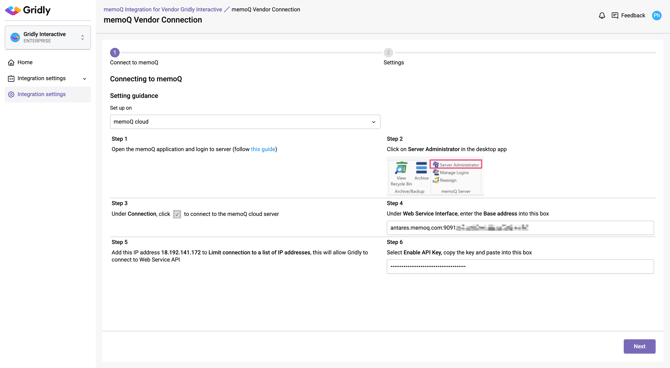
- Click Next to proceed to step 2 (Settings).
- Under Push from Gridly to memoQ, select which push types the client company can use:
- New project: Create a new memoQ project when pushing.
- Existing projects: Push to existing memoQ projects.
- Reimport: Reimport content into an existing memoQ document.
- Under Link memoQ and Gridly projects, select Only linked projects, then check the specific memoQ projects you want to share with the client company.
- Similarly, select Only linked templates under Link memoQ template to Gridly to choose only the templates you want to share.
- Click Save.
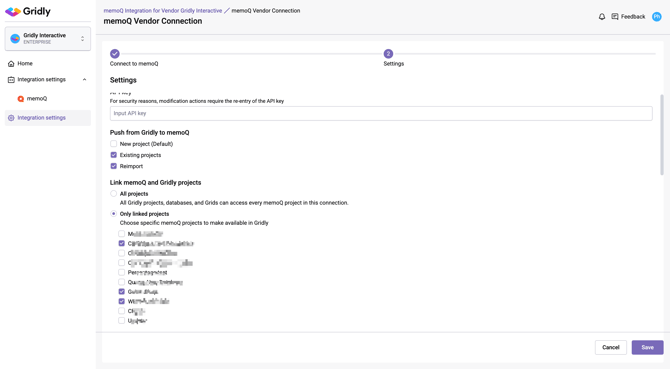
The client company can only see and work with the projects you selected:
- They cannot see any other projects nor create new projects in your memoQ instance.
- The connection settings are read-only on their end.
- Your memoQ API key is never exposed to them.
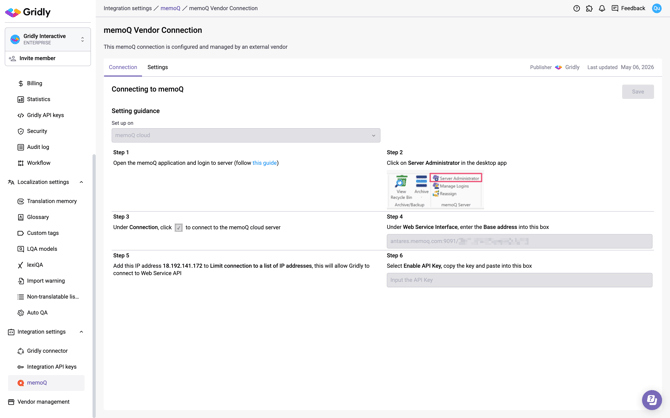
Here is what your client company will see when they access your memoQ connection in Gridly.