
Table of contents:
- Accessing Job report
- Job report snapshots
- Viewing translation changes
- QA check run history
- Exporting Job report
The Job report provides a comprehensive view of translation work in your TMS Jobs. It captures snapshots of segments at each workflow step, allowing you to track how translations evolve through multi-step workflows and review the work performed by different team members.
Job reports are available only for jobs created after October 15, 2025.
Workflow steps are set in Category settings and Job settings. Refer to these articles for more details:
Accessing Job report
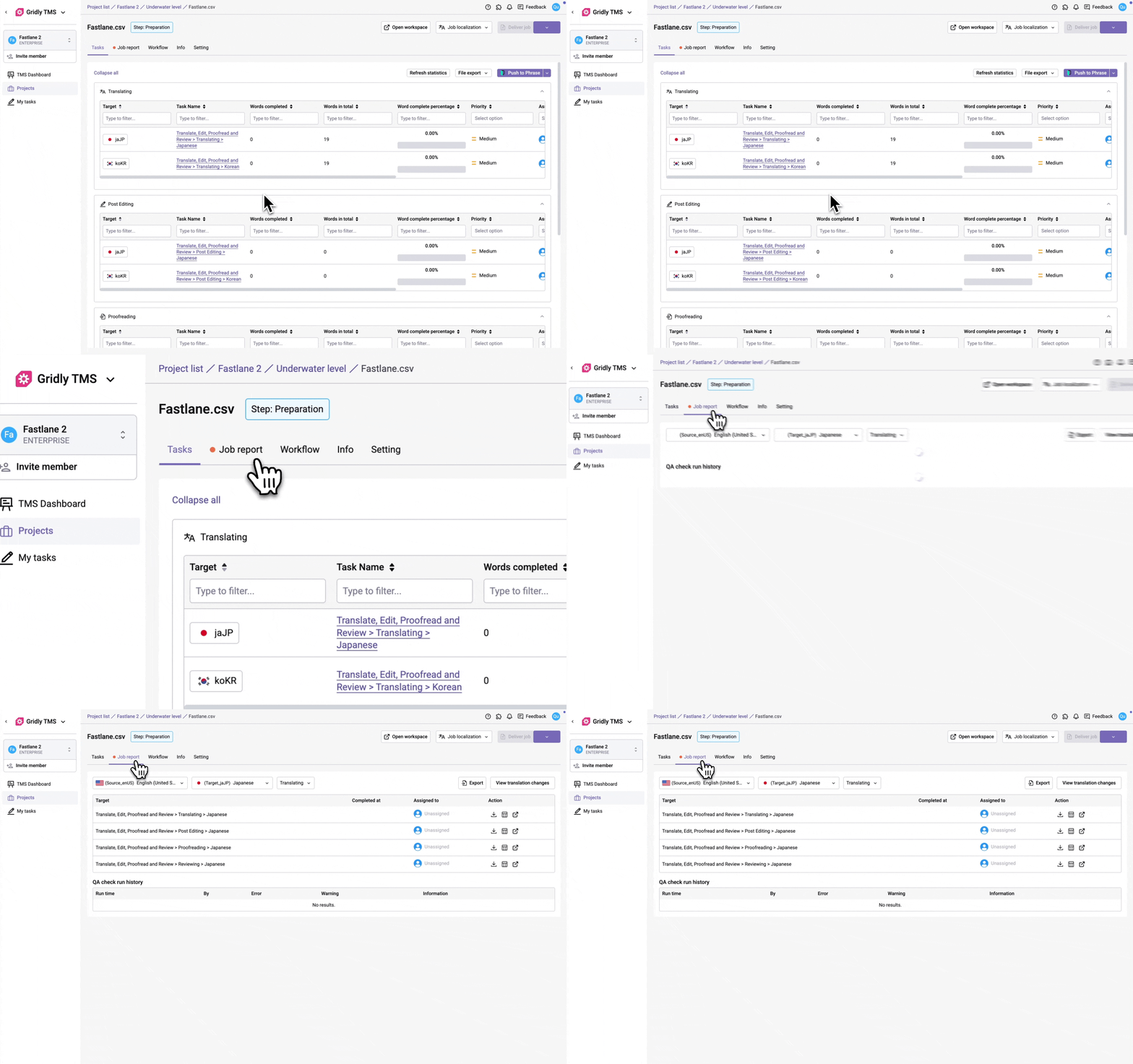
To view Job report:
- Navigate to your Job in Gridly.
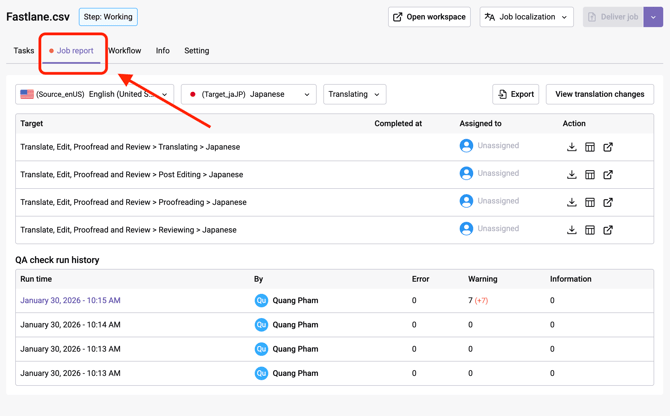
- Switch to the Job report tab.
- Filter Tasks by selecting your source and target languages from the dropdown menus.
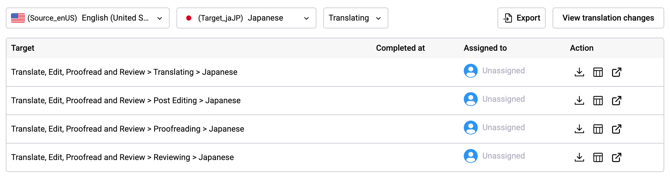
Each row represents a Task within the Job. The Job report displays the following information:
- Target: The name of the Task
- Completed at: Timestamp showing the time of Task submission (Work control > Submit work )
- Assigned to: Team member who is assigned to the Task
- Snapshots: Segments, settings, and metadata at the time snapshot was captured
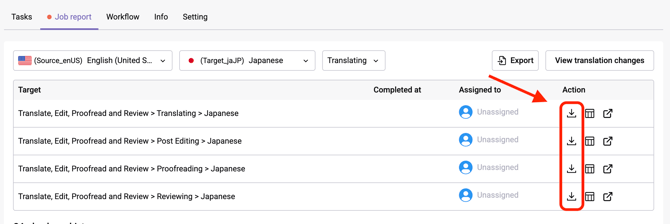
- Action: Download individual snapshots
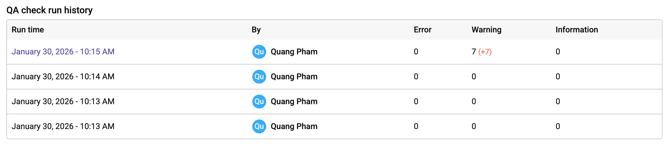
The Job report also includes a QA check run history section that displays results from quality assurance checks performed on the Job.
Job report snapshots
A snapshot is a point-in-time capture of your Task segments and settings. Each snapshot preserves the state of your segments, including source text, target translations, localization settings, and metadata. This allows you to track exactly how translations evolved through each workflow step and audit the work performed by team members.
Generating snapshots
Gridly generates a snapshot for a segment when it's confirmed. Learn how to confirm a segment.
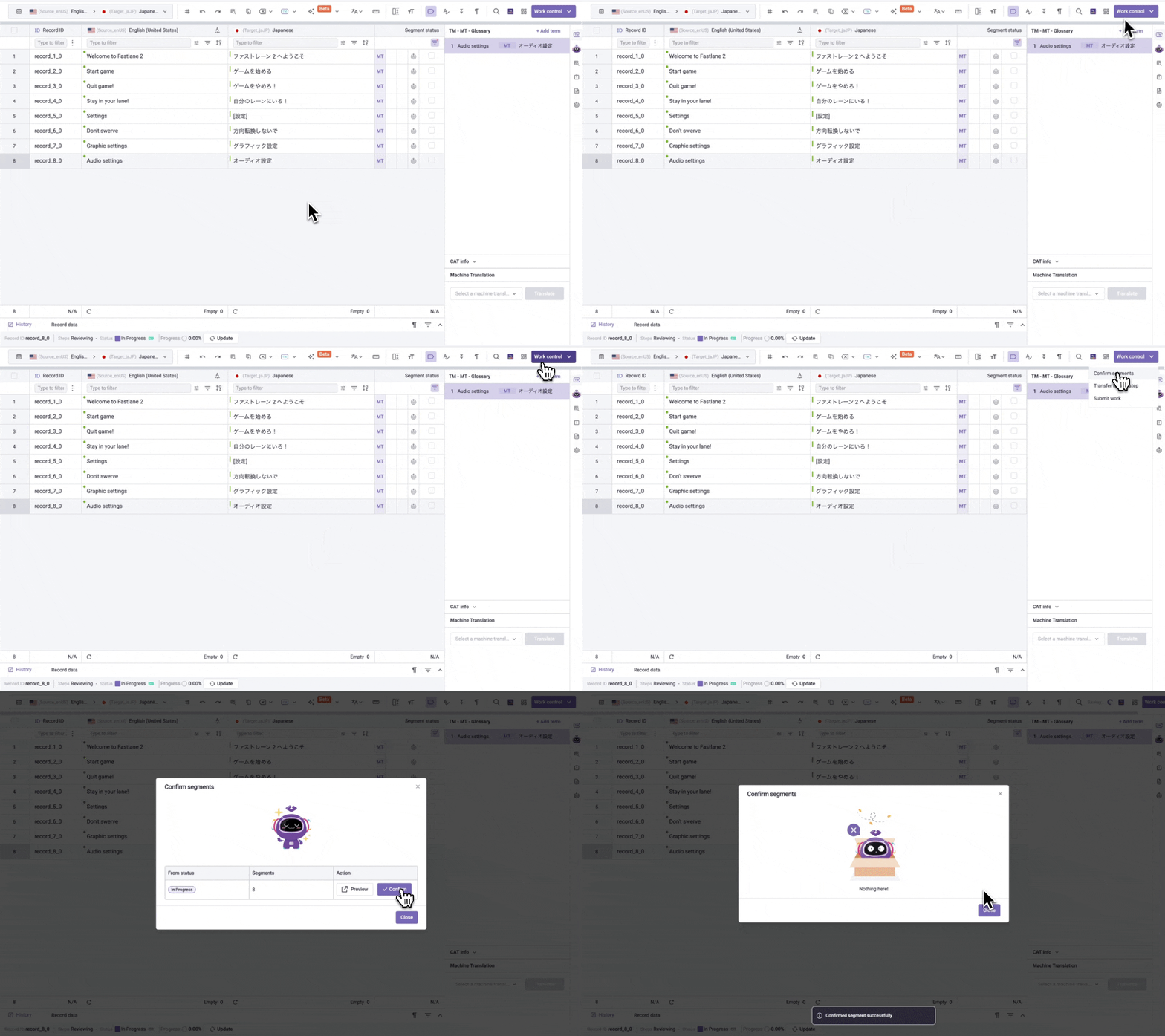
You can also bulk confirm all segments in the CAT Editor:
- Open the Task in the CAT Editor
- Click Work control and select Confirm segment. This will generate snapshots of all your segments.
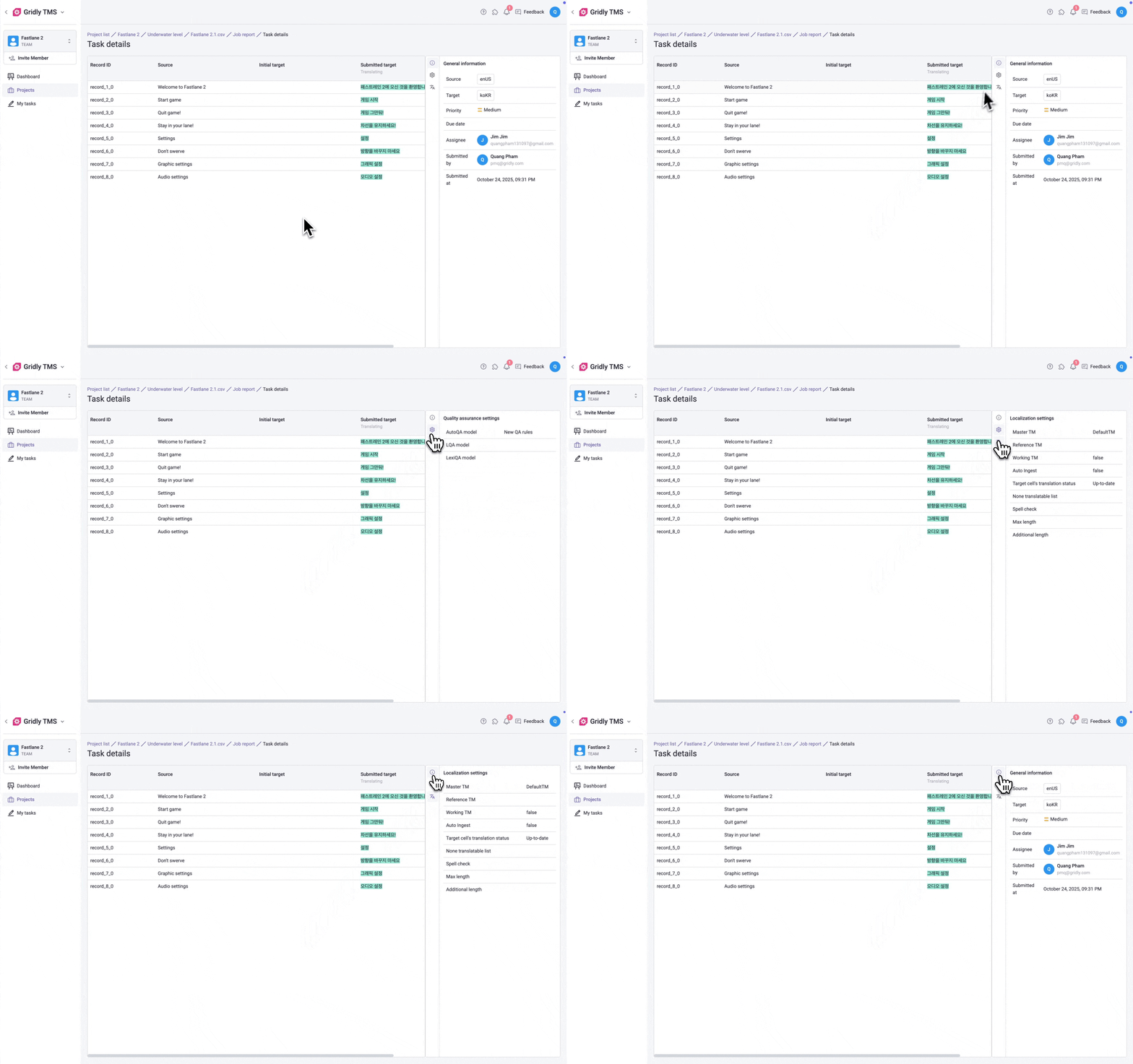
Viewing snapshots
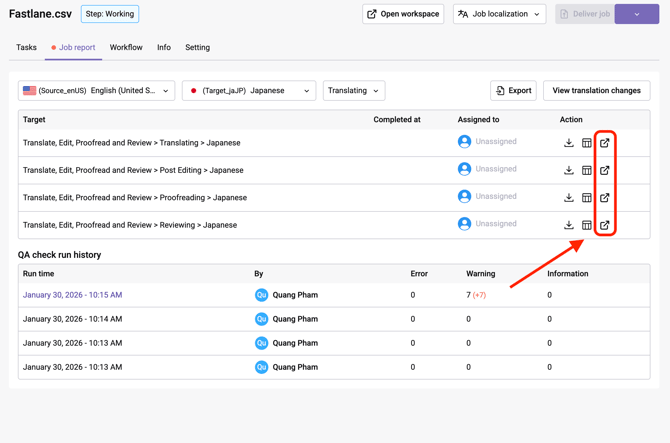
To view a snapshot of a particular Task, click the  icon.
icon.
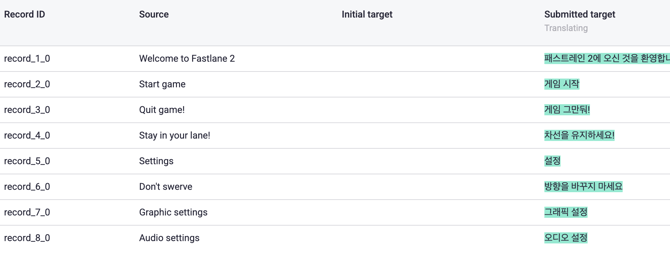
A snapshot contains a table with:
- Record ID: Identifier for each segment
- Source: Original source language text
- Initial target: The starting state of the target text when the Task was created
- Submitted target: The target text at the time of confirming
To view additional Task details, click the icons on the right-hand side toolbar:
- General information: Source and target language, priority, due date, assignee, etc.
- Quality assurance settings: QA check model, LQA model, lexiQA model
- Localization settings: Master TM, working TM, auto ingest, etc.
Viewing translation changes
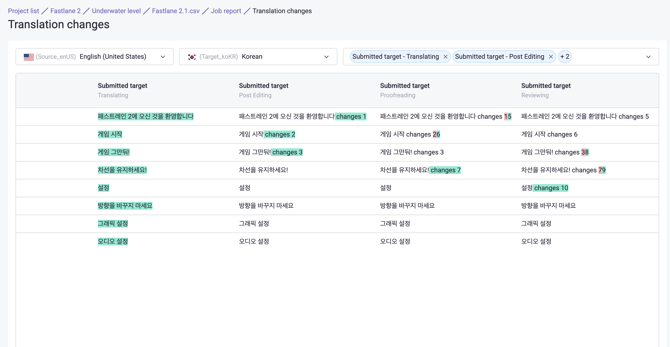
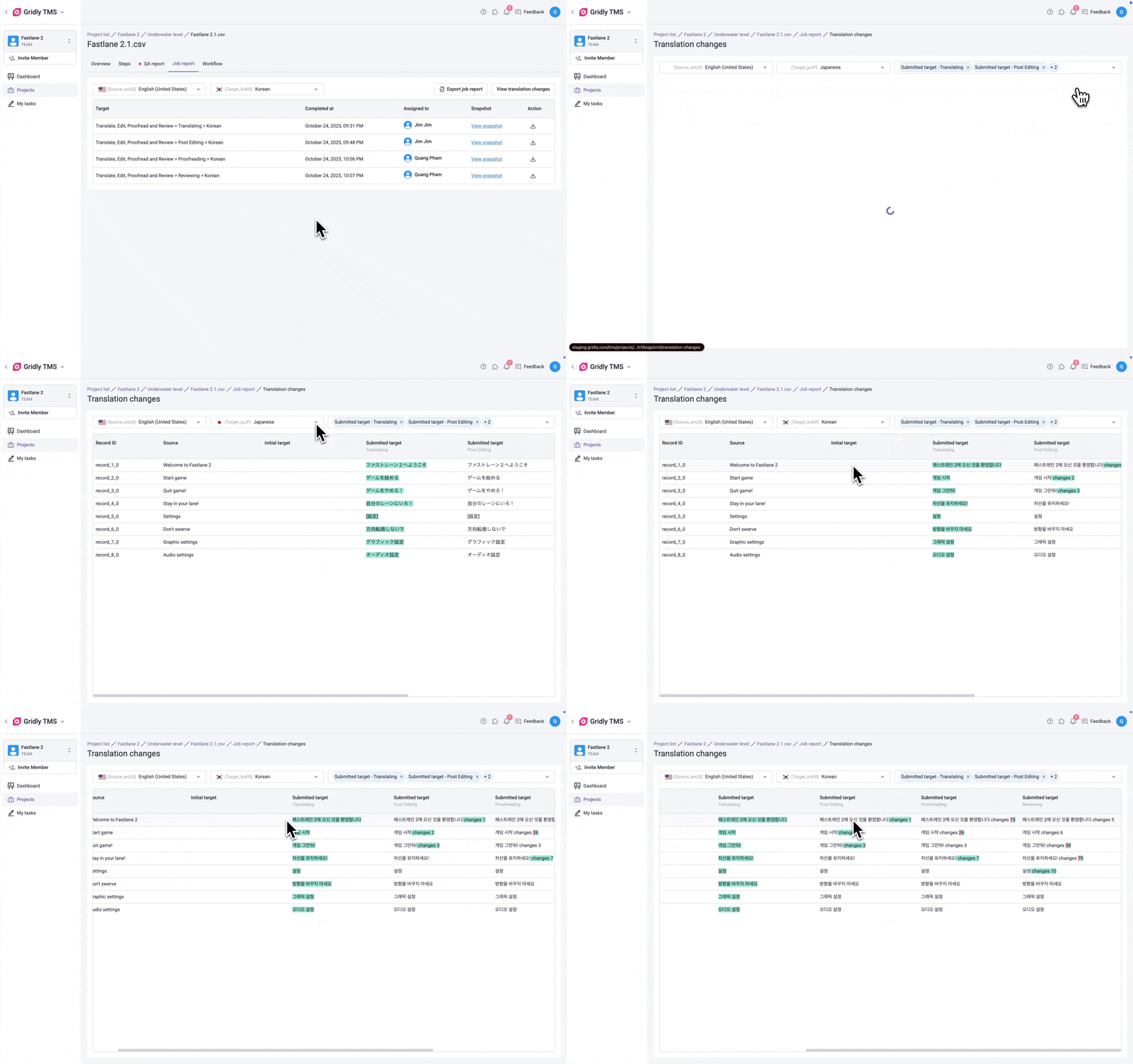
The Translation changes view enables you to consolidate all snapshots into a single view, making it easy to compare translation updates across each step of the workflow.
- In Job report, click View translation changes
- Filter Tasks by selecting your source and target languages from the dropdown menus
- The Translation changes page displays:
- Record ID: Identifier for each segment
- Source: Original source language text
- Initial target: The starting state of the target text when the Task was created
- Submitted target: Text confirmed at each workflow step. Words or phrases that were modified appear in different colors:
- Green highlighting indicates additions or changes in that step
- Red highlighting indicates texts that were removed or replaced
QA check run history
The QA check run history section displays results from QA checks performed. The table shows:
- Run time: When the QA check was executed
- By: The user who ran the check
- Error: Number of error-level issues found
- Warning: Number of warning-level issues found
- Information: Number of informational issues found
The report also indicates the changes in number of issues between runs:
- Red numbers: Increase compared to the previous run
- Green numbers: Decrease compared to the previous run

To view the detailed result of each run, click on its run time. To learn more about each error code, refer to this article: QA Check errors reference guide.
You can quickly determine if a TMS Job still has unresolved QA Check issues using the Job report status:
- If the status is orange, the Job still has unresolved QA Check issues.
- If the status is green, the Job doesn't have any unresolved QA Check issues and can be delivered without any warnings.
TMS Jobs with unresolved QA Check issues cannot be delivered. To bypass this, your Project role needs to have the Bypass QA report errors to deliver job privilege. Learn more in this article: Permission overview.
Exporting Job report
You can export Job report data for offline analysis or record-keeping:
- To export the full Job report: Click Export job report in the Job report.
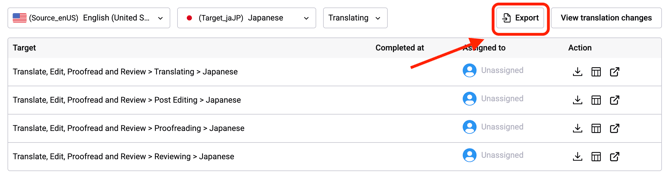
- To export a specific Task snapshot:
- Locate the Task in the Job report table
- Click the
 icon in the Actions column