
Table of contents:
- How import warnings work
- Default actions
- Source statuses
- Creating a custom import warning setting
- Advanced settings
Import warning settings let you control how Gridly handles potential conflicts and edge cases when importing translation files. You can configure which warnings are displayed and what action Gridly takes automatically for each source status.
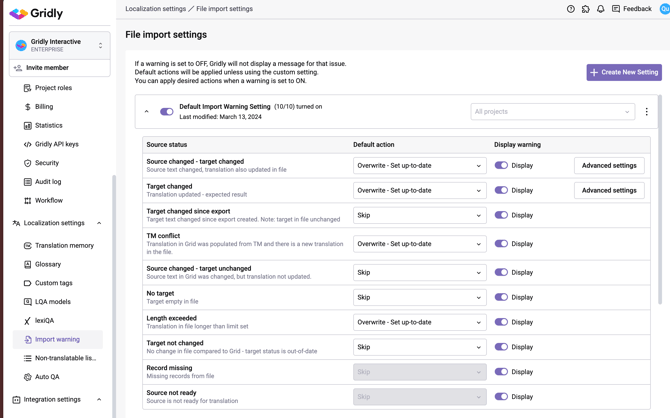
To access import warning settings, go to Localization settings > Import warning in the left sidebar.
How import warnings work
Each source status has two configurable options:
- Default action: The action Gridly applies automatically when importing a file (e.g., overwrite the existing translation or skip the import for that record).
- Display warning: Controls whether Gridly shows a warning message for that source status during import.
When a warning is turned off, Gridly silently applies the default action without notifying you. When a warning is turned on, Gridly displays a message so you can review and act on it.
Default actions
The Default action dropdown determines what Gridly does with the imported content for each source status. The available actions are:
- Overwrite - Set up-to-date: Replaces the existing translation in Grid with the content from the file and marks the target cell as up-to-date.
- Overwrite - Set out-of-date: Replaces the existing translation in Grid with the content from the file and marks the target cell as out-of-date.
- Ignore - Set out-of-date: Keeps the existing translation in Grid unchanged but marks the target cell as out-of-date.
- Skip: Takes no action; the existing translation in Grid is left as-is.
Source statuses
The following source statuses can be configured:
| Source status | Description |
|---|---|
| Source changed - target changed | Source text changed, and the translation was also updated in the file. |
| Target changed | Translation was updated - the expected result. |
| Target changed since export | Target text changed since the export was created. Note: the target in the file is unchanged. |
| TM conflict | Translation in Grid was populated from TM, and there is a new translation in the file. |
| Source changed - target unchanged | Source text in Grid changed, but the translation was not updated. |
| No target | Target cell is empty in the file. |
| Length exceeded | Translation in the file is longer than the limit set. |
| Target not changed | No change in the file compared to Grid - target status is out-of-date. |
| Record missing | Records from the file are missing in Grid. |
| Source not ready | Source is not ready for translation. |
Creating a custom import warning setting
Gridly includes a built-in Default Import Warning Setting that applies to all projects. This setting comes pre-configured with recommended actions and warnings for each source status. You can expand it to review or adjust the configuration.
You can create custom settings to apply different import behaviors to specific projects.
- Click + Create new setting.
- Configure the Default action and Display warning toggle for each source status.
- In the project dropdown on the right, select the project you want this setting to apply to.
A custom setting overrides the default for the selected project.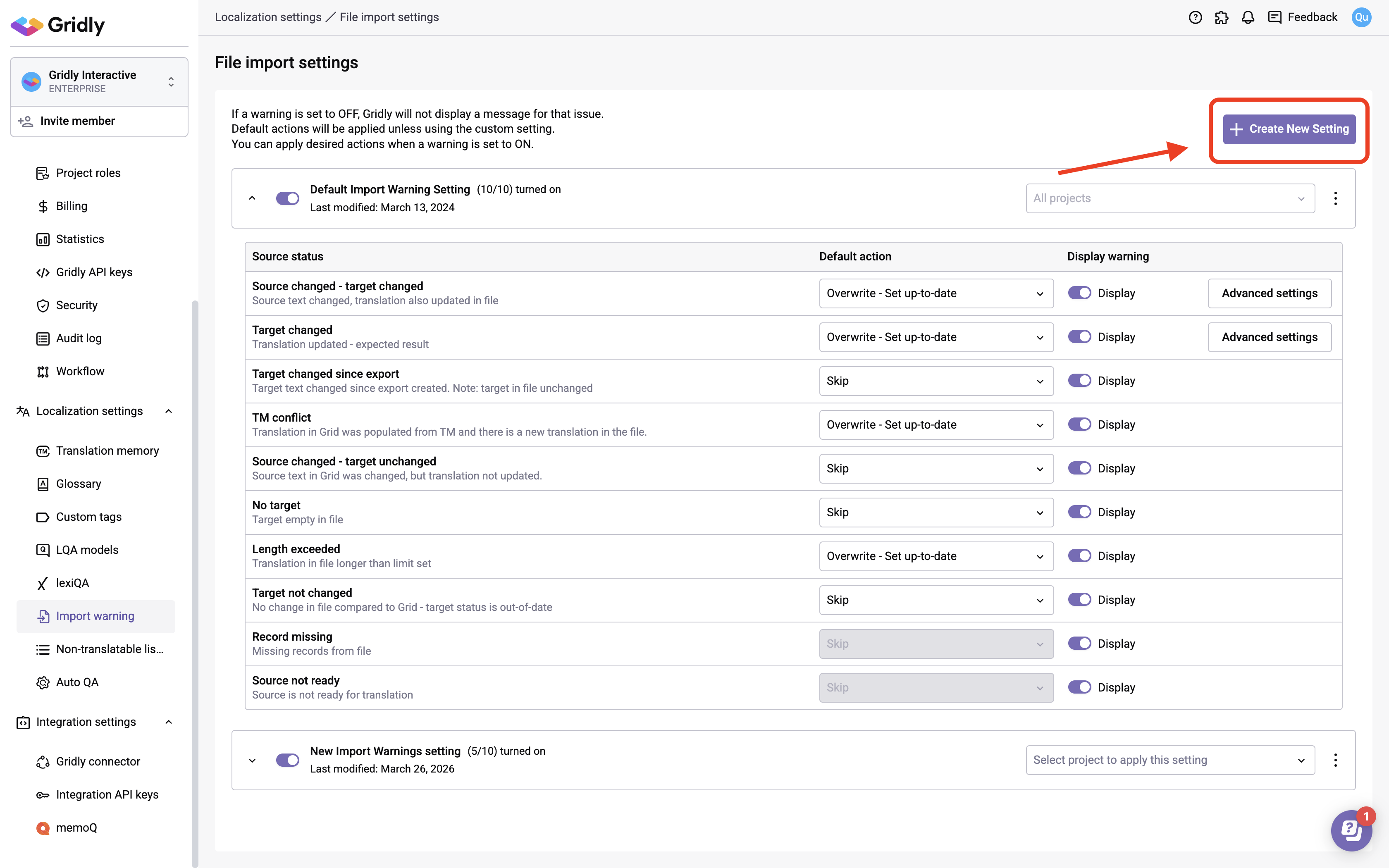
Advanced settings
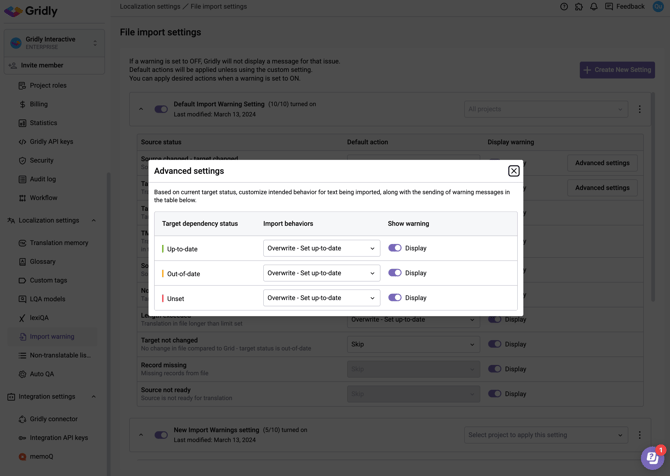
For the Source changed - target changed and Target changed statuses, you can click Advanced settings to define behavior based on the target cell's dependency status.
This lets you set a different import behavior and warning preference for each of the following dependency states: Up-to-date, Out-of-date, Unset.
For each state, you can choose an Import behavior from the dropdown and toggle Show warning on or off independently.