
Table of contents
- How it works
- Create a custom format setting
- Configure quote characters for each language
- Assign a custom format to a project
- Enable custom formats
Custom formats let you define how quotation marks and apostrophes appear in your translated content. Instead of using default straight quotes, you can specify custom opening and closing characters for single and double quotes on a per-language basis. This is useful when your target locales follow different typographic conventions.
Custom format settings are managed at the workspace level under Localization settings and can be assigned to individual projects.
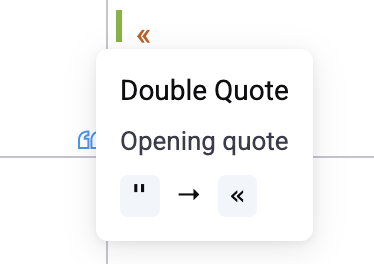
Example: Your source content in English uses straight double quotes — "Welcome to the game". For French, the typographic convention uses guillemets (« and »), while German uses low-high quotes („ and ").
How it works
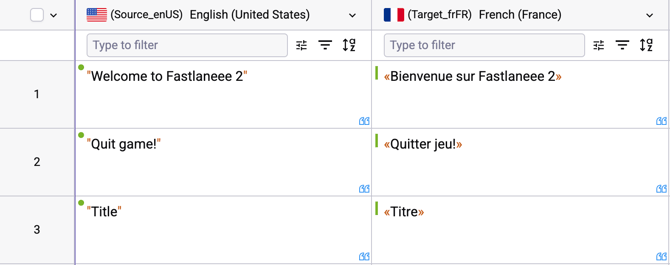
When a custom format is configured for a language, Gridly automatically renders quote characters in that language's columns according to your defined settings. The underlying data in the database is never modified - Gridly only changes how values are displayed. This means:
- Existing translations are not overwritten when you update a format setting.
- All values, existing and new, update visually to reflect the latest configuration.
- Exported files reflect the current format settings at the time of export.
If no custom format is configured, Gridly uses the defaults: ' for single quotes and " for double quotes.
Create a custom format setting
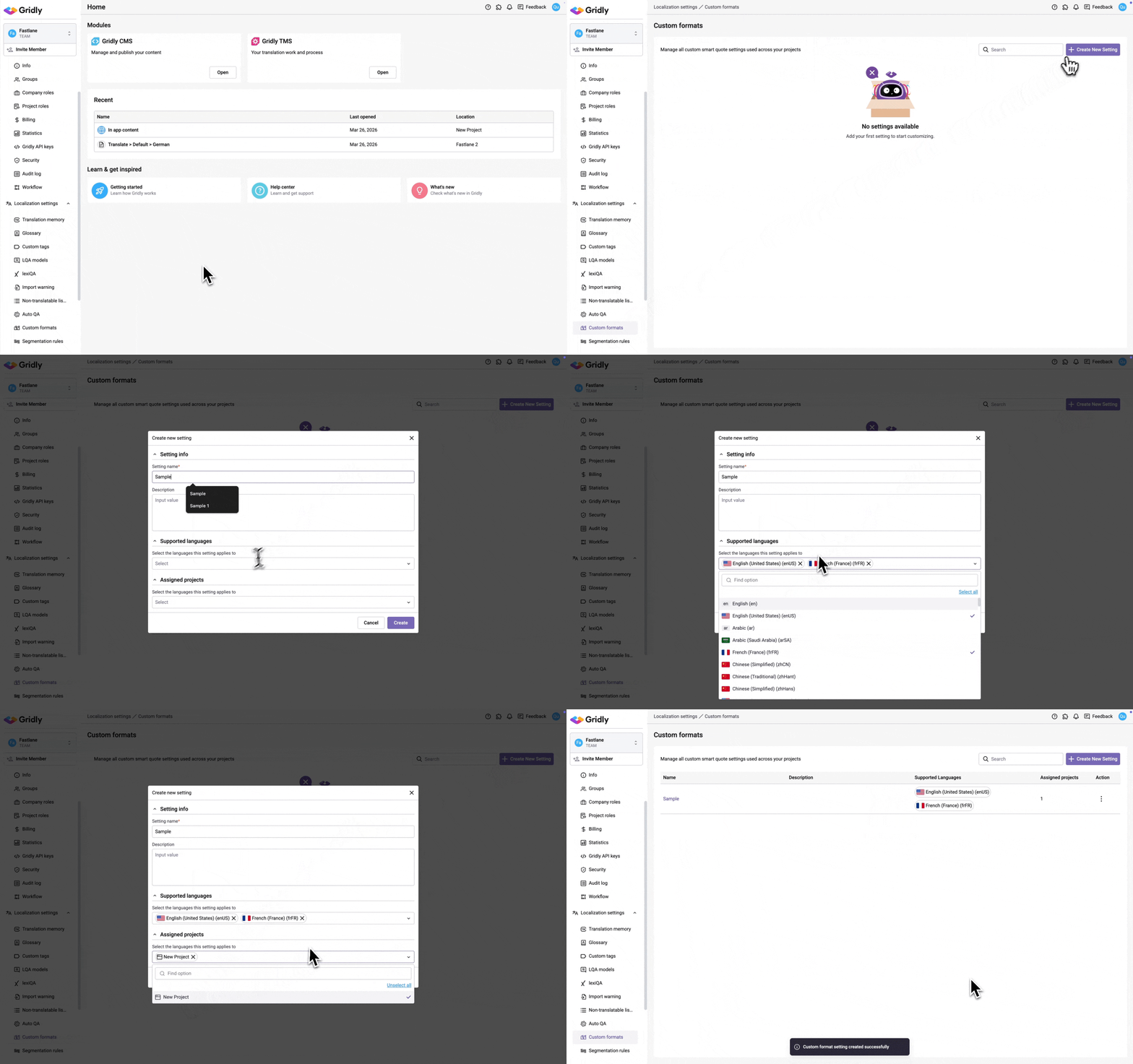
- Go to Localization settings > Custom formats.
- Click + Create New Setting.
- Under Setting info, enter a Setting name (required) and an optional Description.
- Under Supported languages, select the languages this setting applies to.
- Under Assigned projects, select the CMS projects that will use this setting. For TMS projects, see here.
- Click Create.
Configure quote characters for each language
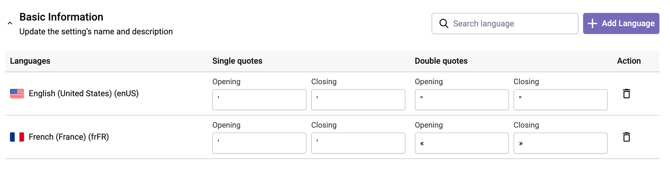
After creating a setting, you can define the opening and closing characters for single and double quotes per language.
- From the Custom formats list, click the name of the setting you want to configure.
- In the language table, locate the language you want to configure.
- Enter your desired characters in the Opening and Closing fields under Single quotes and Double quotes.
- Click Save.
Assign a custom format to a project
CMS module
In Gridly CMS, custom format settings can be assigned when creating the setting (see above) or updated later from within the setting's detail page. Once assigned, the custom format can be used for all Grids inside that project.
TMS module
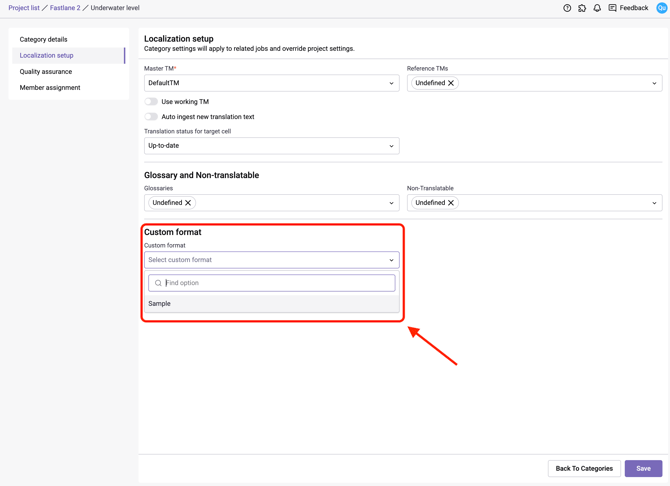
In Gridly TMS, custom format settings can be assigned in Category settings. Once assigned, all Tasks under that Category will can use the custom format:
- Open Category settings then switch to Localization setup tab
- In the Custom format dropdown, select the custom format setting you want to assign.
- Click Save.
Enable custom formats
When you are working in a CMS Grid or the CAT Editor, enable custom formats by clicking on the  icon in the top toolbar. Cells affected by custom format settings will have the
  icon in the bottom right corner. Custom format settings will also take effect when adding new content.
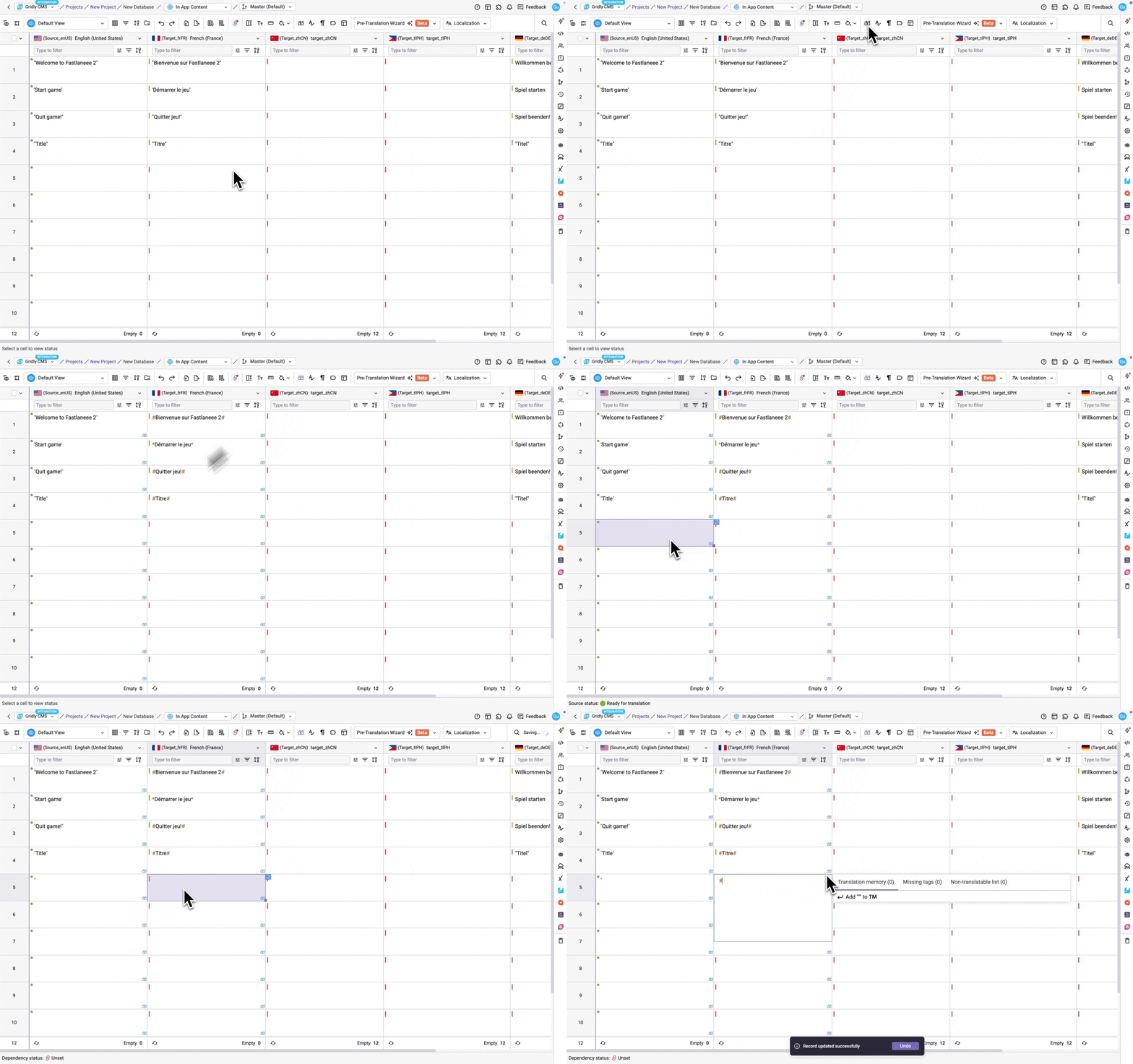
Hover over a custom format to view its setting.