
This feature is available in the CMS module.
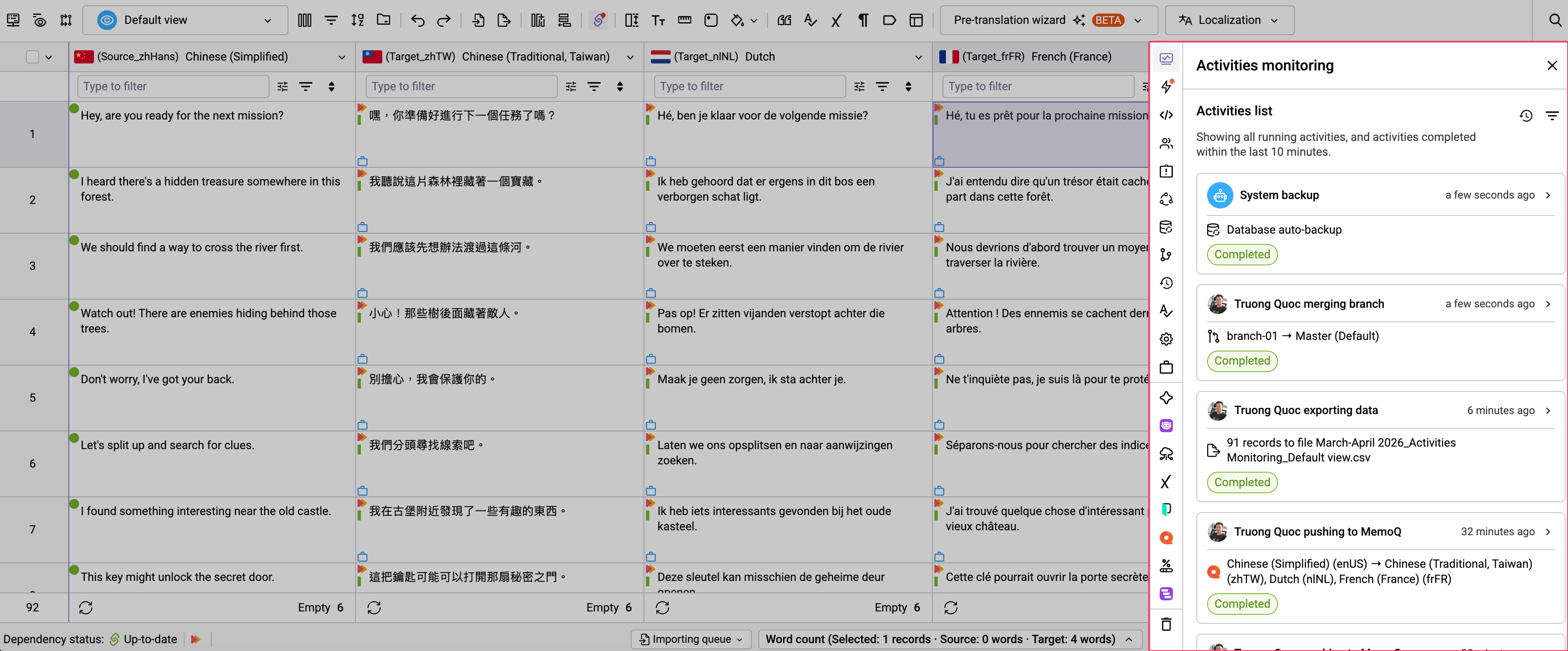
When you work in a Grid, Activity monitoring shows you who is doing what in that Grid, in real time. With Activity monitoring, you can:
- See who ran which action, such as who is pushing to memoQ or who just restored a backup.
- Track long-running actions like import, pre-translation, or push without reloading the page.
- Know right away which actions have completed and which have failed.
- Avoid running duplicate or overlapping actions with your teammates.
Activities are scoped to the Grid and branch you currently have open. Activities from other branches aren't shown.
Activity monitoring vs. Grid history
Both features help you understand what happens in a Grid, but from different angles:
| Activity monitoring | Grid history | |
|---|---|---|
| Focus | Actions as they happen | Results of changes that already happened |
| Use it to | Track the progress and status of actions | Trace back changes |
| Answers | Who is running what? Is it done? Did it fail? | What data changed, when, and by whom? |
Tracked activities
Activity monitoring tracks the following actions.
Actions performed inside a Grid:
- Pre-translation
- Merge branch
- Push to Phrase/memoQ
- Data import and export
- Localization import and export
- Grid backup & restore
- TMS QA check
- lexiQA execution
- Push data to TMS for localization
Actions performed outside a Grid
- Archive Grid
- Unarchive Grid
- Save Grid as template
View recent activities
To open Activity monitoring, click the Activities monitoring icon on the right sidebar of the Grid.
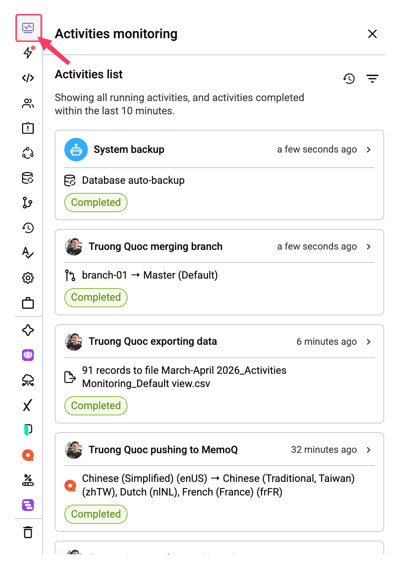
By default, the list only shows:
- Activities that are currently running.
- Activities that finished within the last 10 minutes.
Older activities are not shown in this list. To see them, use the history view (see View all activities below).
The list updates automatically as new activities start or finish. Each action appears as a single item, even when it covers multiple languages. For example, pushing to memoQ for three target languages shows as one item.
Each item displays who triggered the action, the action name, a short summary, when it happened, and its status:
| Status | Meaning |
|---|---|
| Running | The action is in progress. |
| Completed | The action finished successfully. |
| Failed | The action finished with an error. |
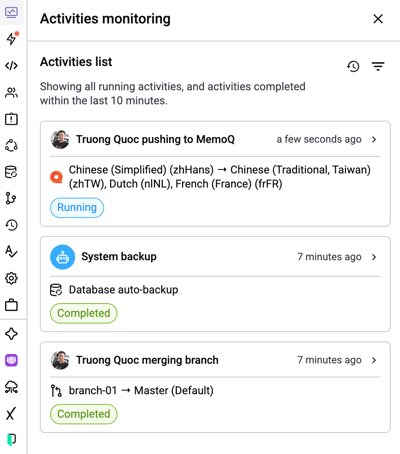
If no activities are running or finished in the last 10 minutes, the list is empty.
View all activities
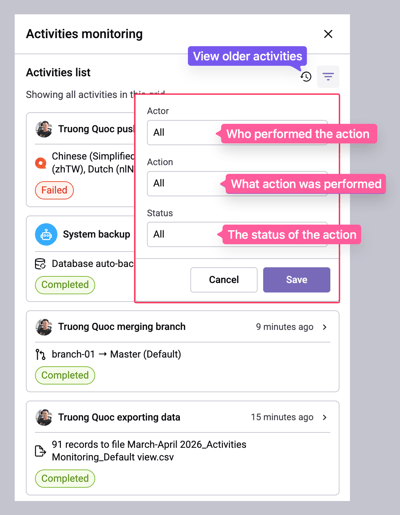
To see all activities in the Grid, not just recent ones, click the History icon at the top of the list.
To narrow down the list, click the Filter icon and filter by:
- Actor: who performed the action.
- Action: what action was performed.
- Status: the status of the action.
View activity details
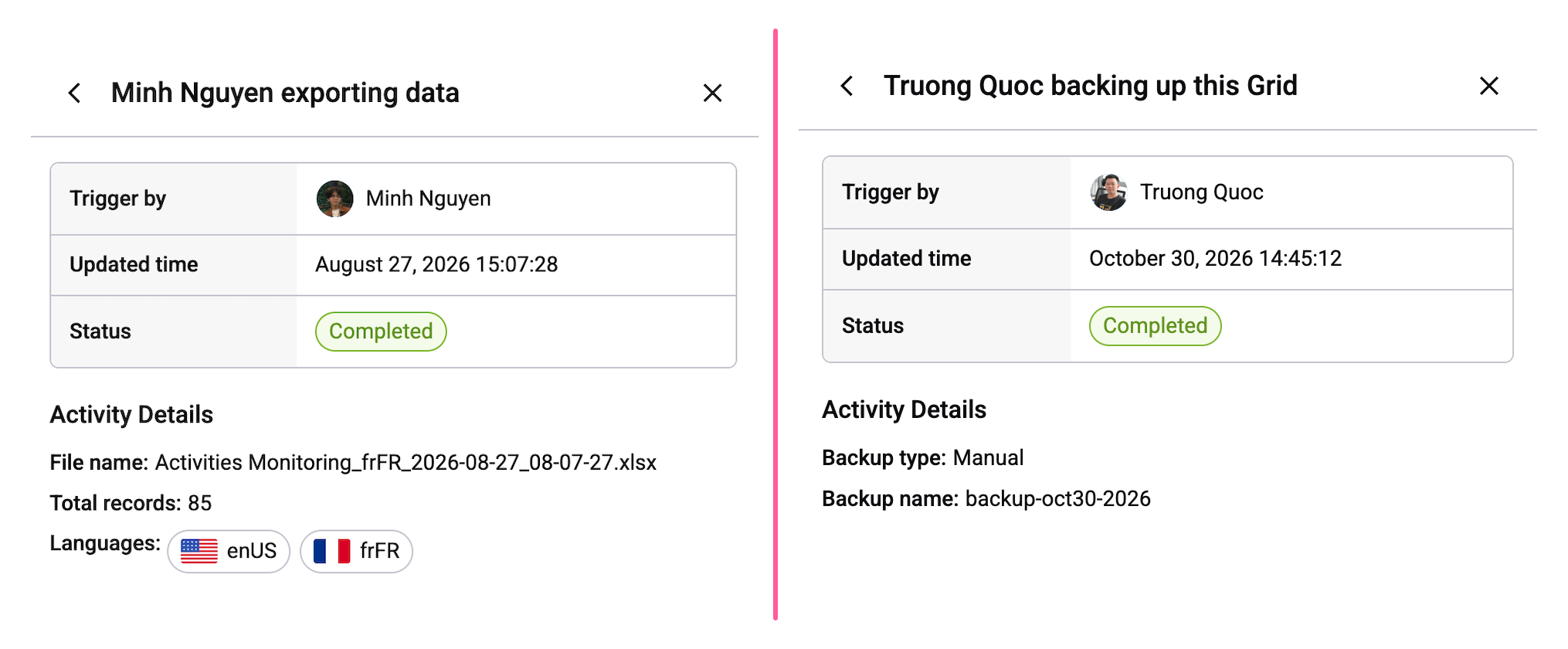
Click an activity in the list to open its details. To go back to the list, click the Back arrow.
Each activity detail has two parts:
General information is the same for every activity:
- Trigger by: the member who started the action.
- Updated time: the date and time of the latest update, shown in absolute format.
- Status: Running, Completed, or Failed.
Activity Details are specific to each activity type. For example:
| Activity | Activity Details |
|---|---|
| Pre-translation | Source language, target languages, and the options selected when running it |
| Localization export | File name, number of records, and languages |
| Backup Grid | Backup type (auto or manual), backup name |
Steps in memoQ pushes
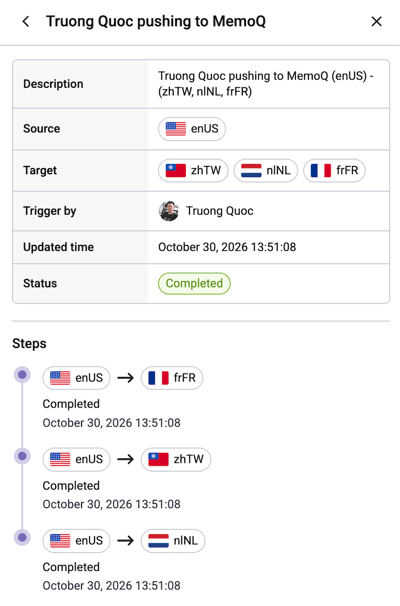
When you push to memoQ, the activity detail includes a Steps timeline. Each target language is one step with its own status and time, so you can see which languages succeeded and which failed.
- If any step is still running, the activity is Running.
- If all steps are completed, the activity is Completed.
- If no steps are running and at least one step fails, the activity is Failed.
Note: Only Push to memoQ includes a Steps timeline. Push to Phrase shows general and additional information only.
Activity pop-ups
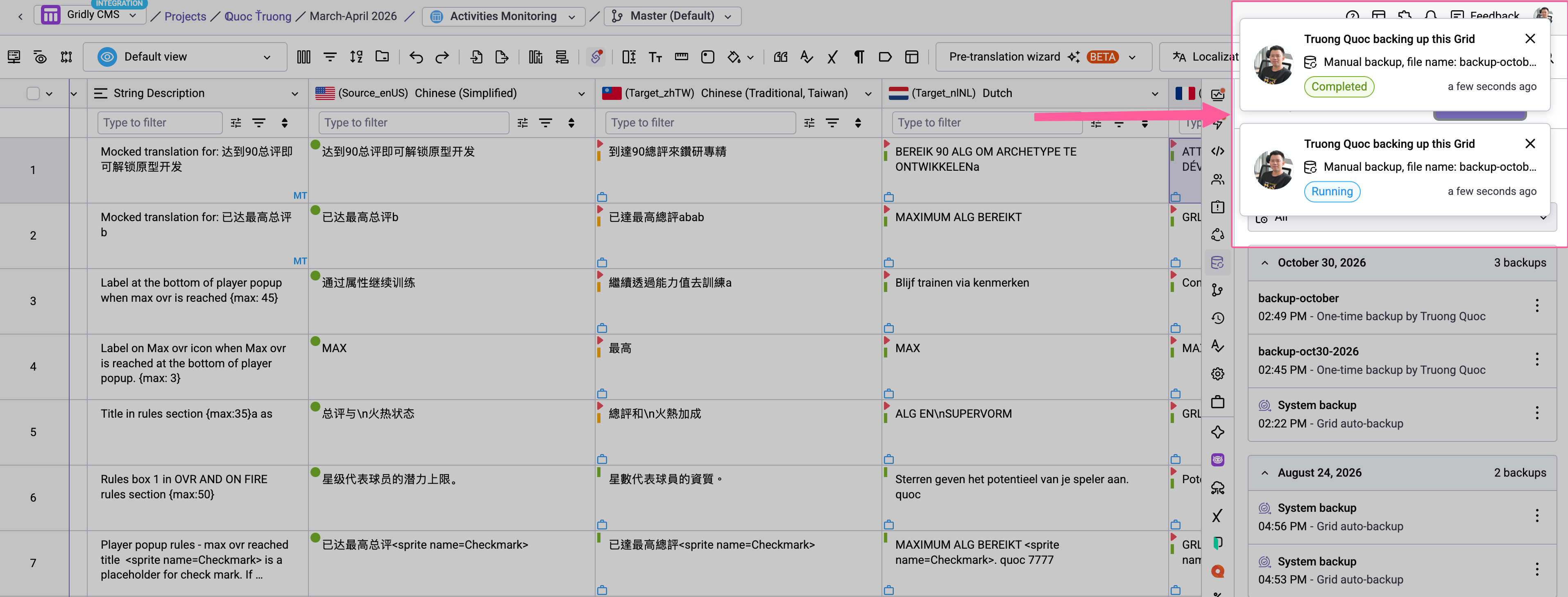
When a new activity occurs in the Grid you're working on, a pop-up appears at the top of the screen, even if the Activity monitoring sidebar is closed. The pop-up:
- Closes automatically after 3 seconds.
- Can be closed manually with the X icon.
- Is for information only. Clicking it doesn't open the activity details.
Turn pop-ups on or off
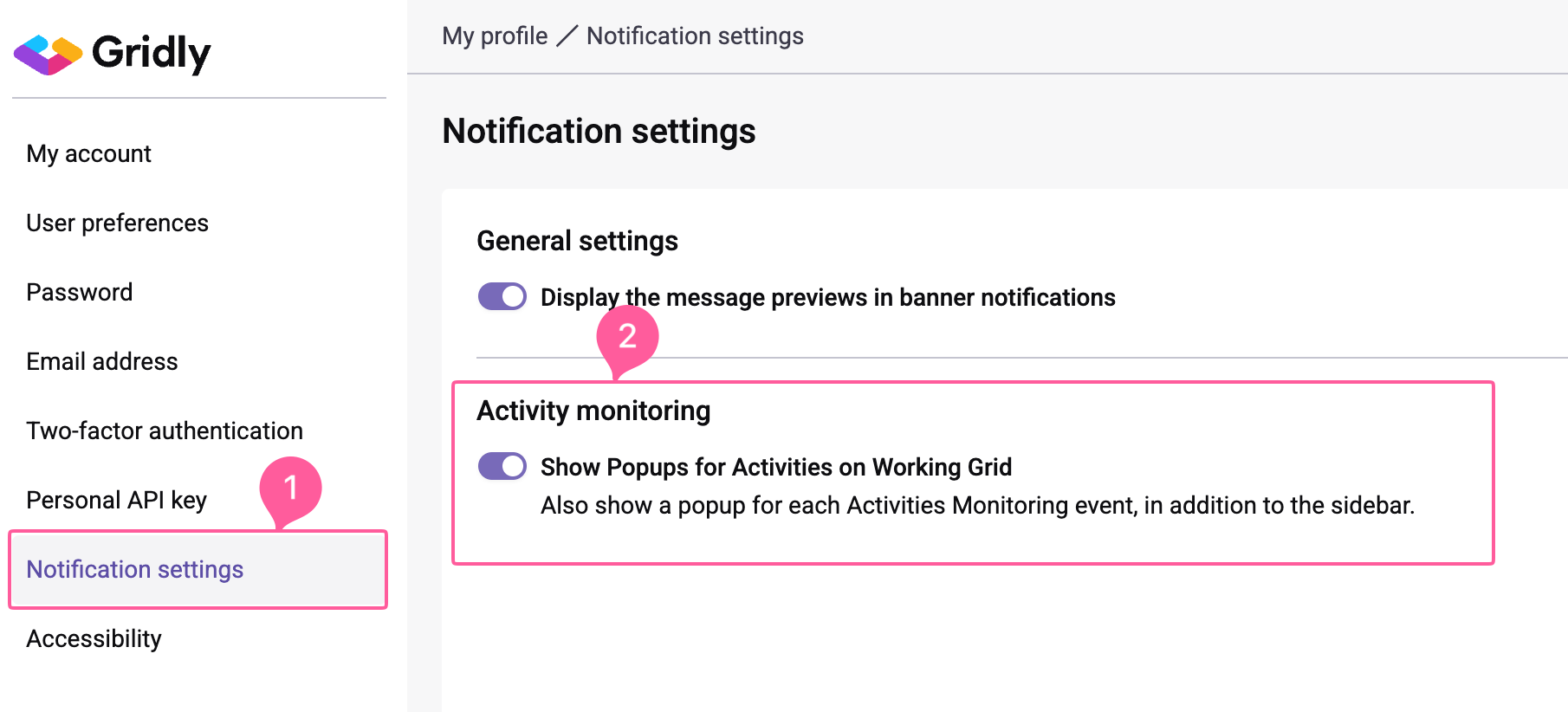
Click your avatar in the top-right corner, then go to My profile → Notification settings.
Under Activity monitoring, turn Show Pop-ups for Activities on Working Grid on or off.
The setting applies to all Grids, but only for your account. It doesn't affect other members. When pop-ups are turned off, activities still appear in the sidebar.