
Table of contents:
- Change theme
- Change font size
- Change your name and profile image
- Change your name
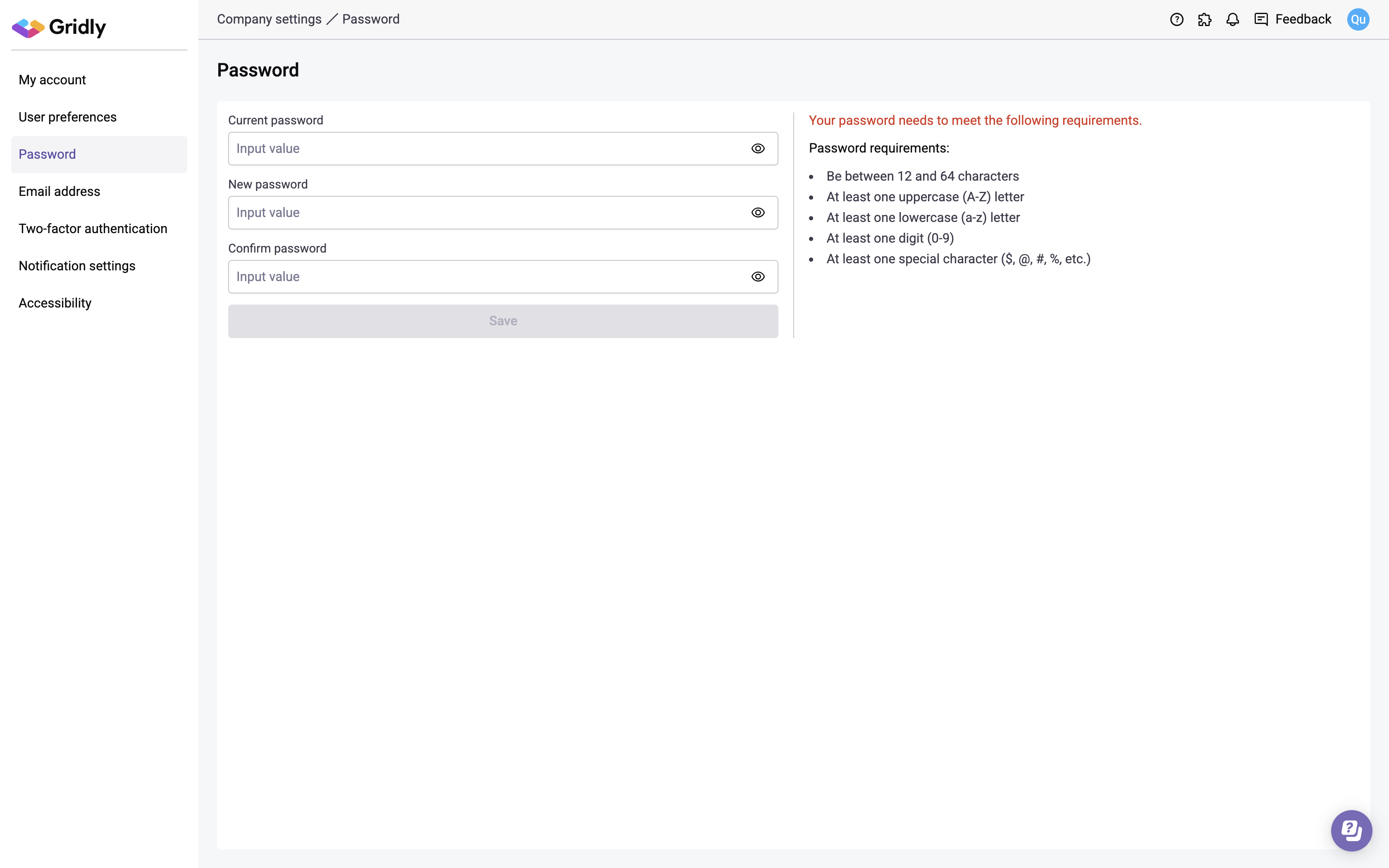
- Change your password
Change theme
Click the profile image in the top right corner, then hover over the Theme dropdown menu. You can choose to display the user interface in Light mode, Dark mode, or based on System.

Change font size
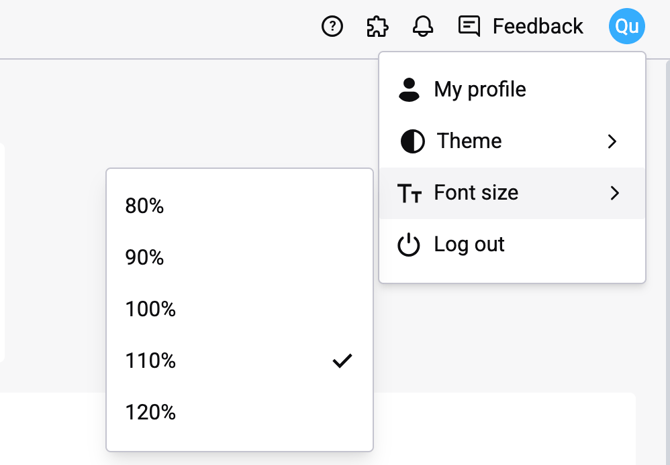
Similarly, you can change the font size in your account settings. In the User dropdown menu, hover over Font Size and select the desired font size by percentage (%).
Change your name or profile image
To change your name and profile image in Gridly:
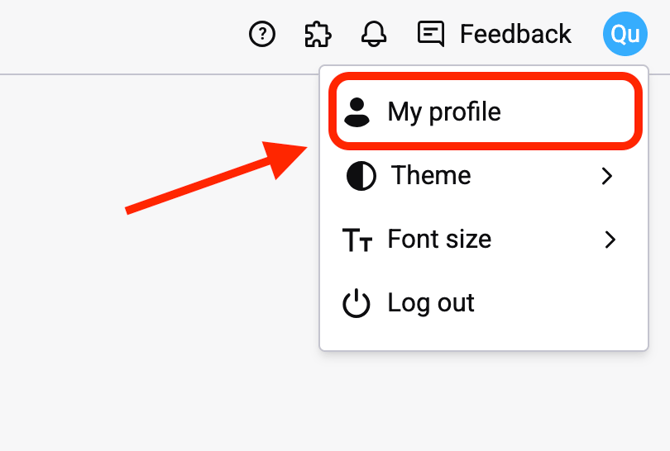
- Click your profile image at the top right corner and select My profile.
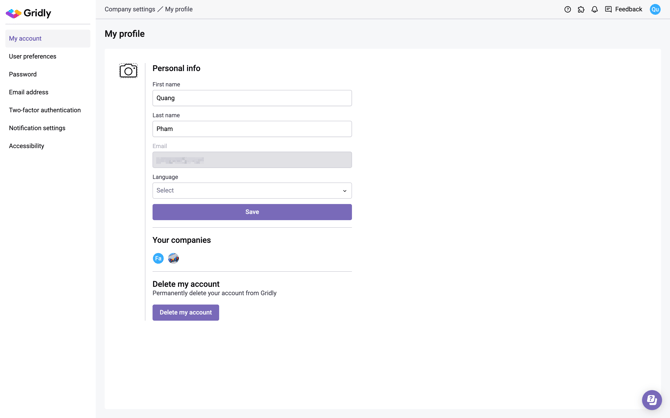
- Change profile image, first name, or last name.
- Click Save.
Change your password
- Click your profile image at the top right corner and select My profile.
- Select Password at the left-hand side menu.
- Enter your current password, new password, and confirm your new password. Your new password must meet these requirements.
- Click Save.