

Table of contents:
- View Record history
- Replace data to current cell/segment
- Restore multiple cell values (CMS module only)
- Record history export (CMS module only)
This feature is available in both the CMS and CAT modules.
You can track any updates made to your texts in a Grid or CAT Editor with Record history, which enables you to roll back to a previous version of your strings.
View Record history
CMS module
View what specific changes have been made on a record in Record History.
- In a Grid, right-click on a cell and select Open record history. You can also open Record history in Grid History (click on Show changes and select the updated status of the record).

- From here, a bottom panel will appear on your screen listing all the available versions of your record. Each version is labeled with date, time, editors and highlight new changes to a record.
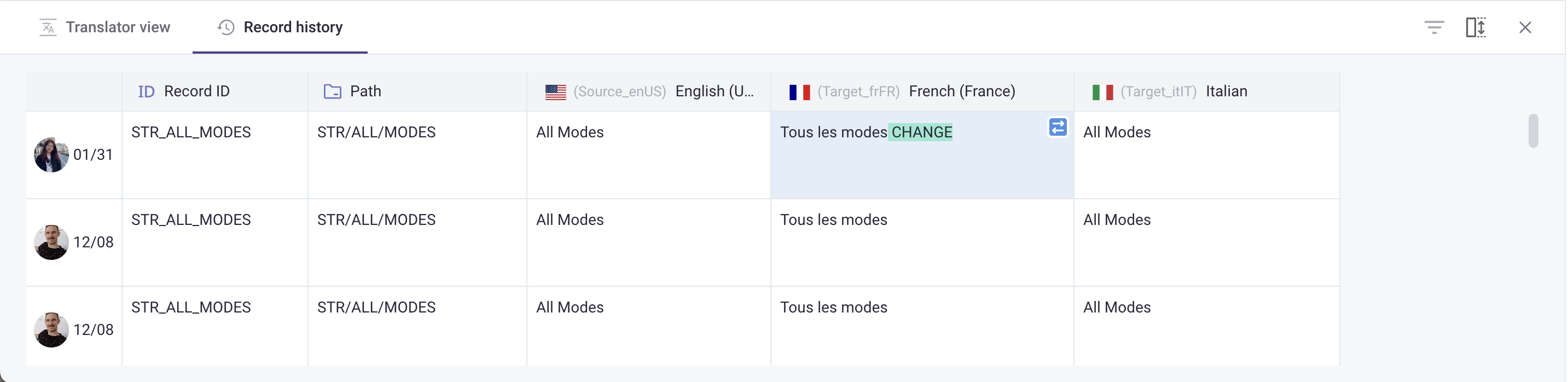
- Each version may also show a translation engine icon (if the change came from a machine translation engine, e.g. Google Translate) or an Automation indicator (if the change was made by an automation rather than a person), so you can tell at a glance what produced the change.

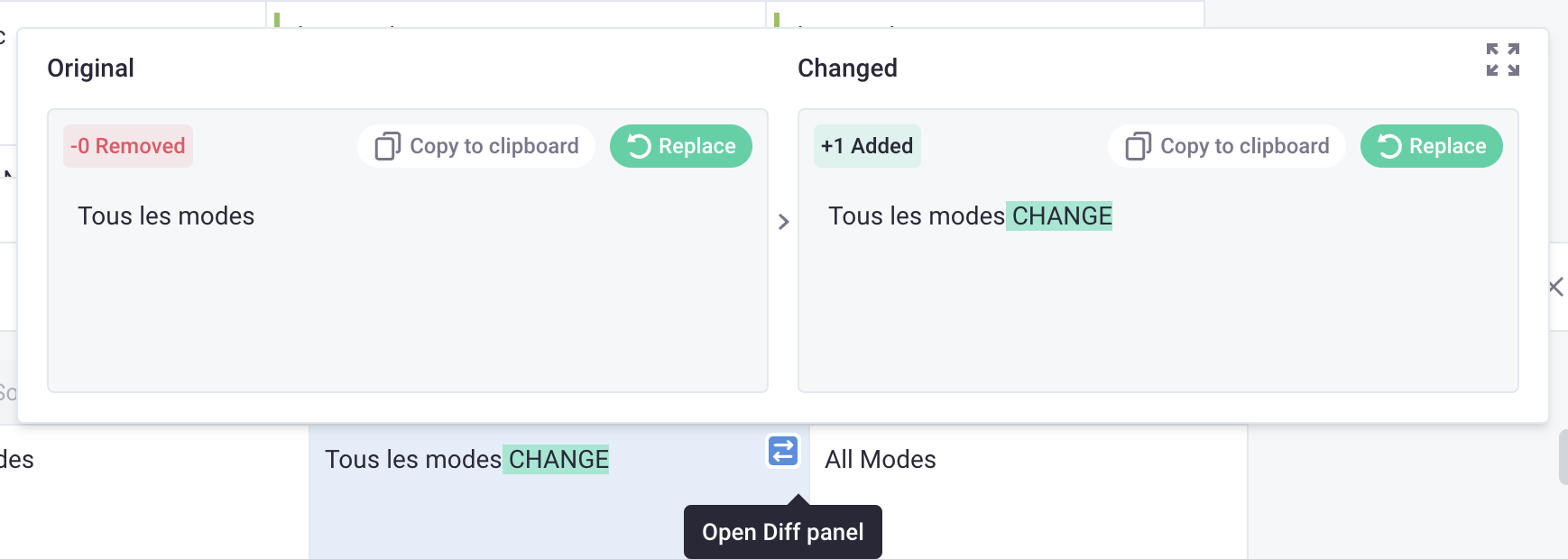
- Click the
 to open the Diff panel to view the original and changed versions of the texts.
CAT module
- In the CAT Editor, switch to History tab in the bottom panel to view all changes made.

- Alternatively, you can view changes made for one segment by selecting and right-clicking the segment number and select Open record history.

Replace data to current cell/segment
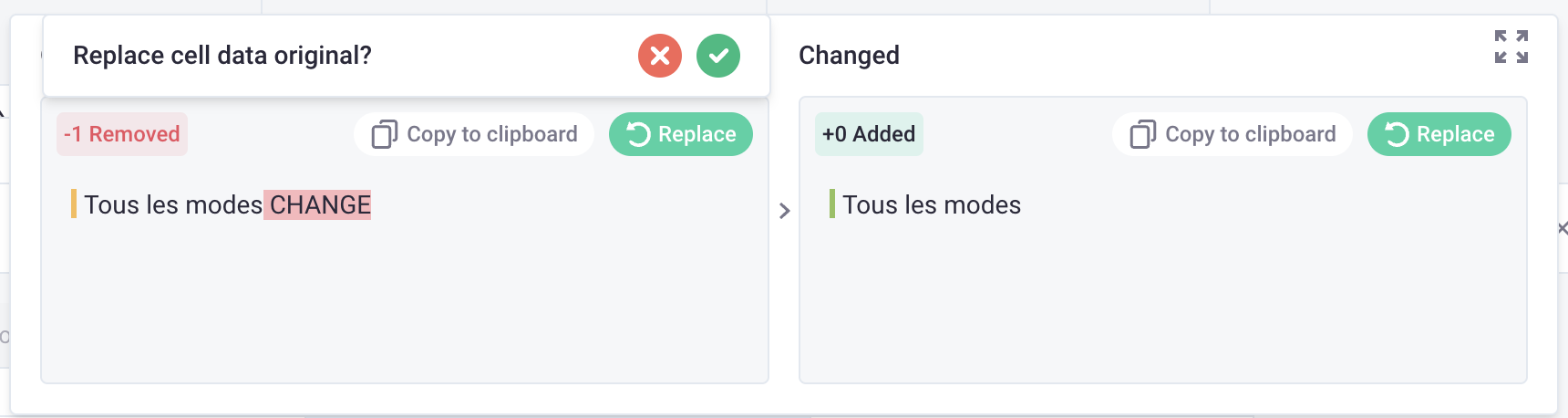
- Click to open Diff panel.
- Select Replace if you want to replace this data to the current cell/segment.
- Click
 to apply the replacement.
Restore multiple cell values (CMS module only)
You can select multiple cells from a historical record entry and restore their values to the current record in one action.
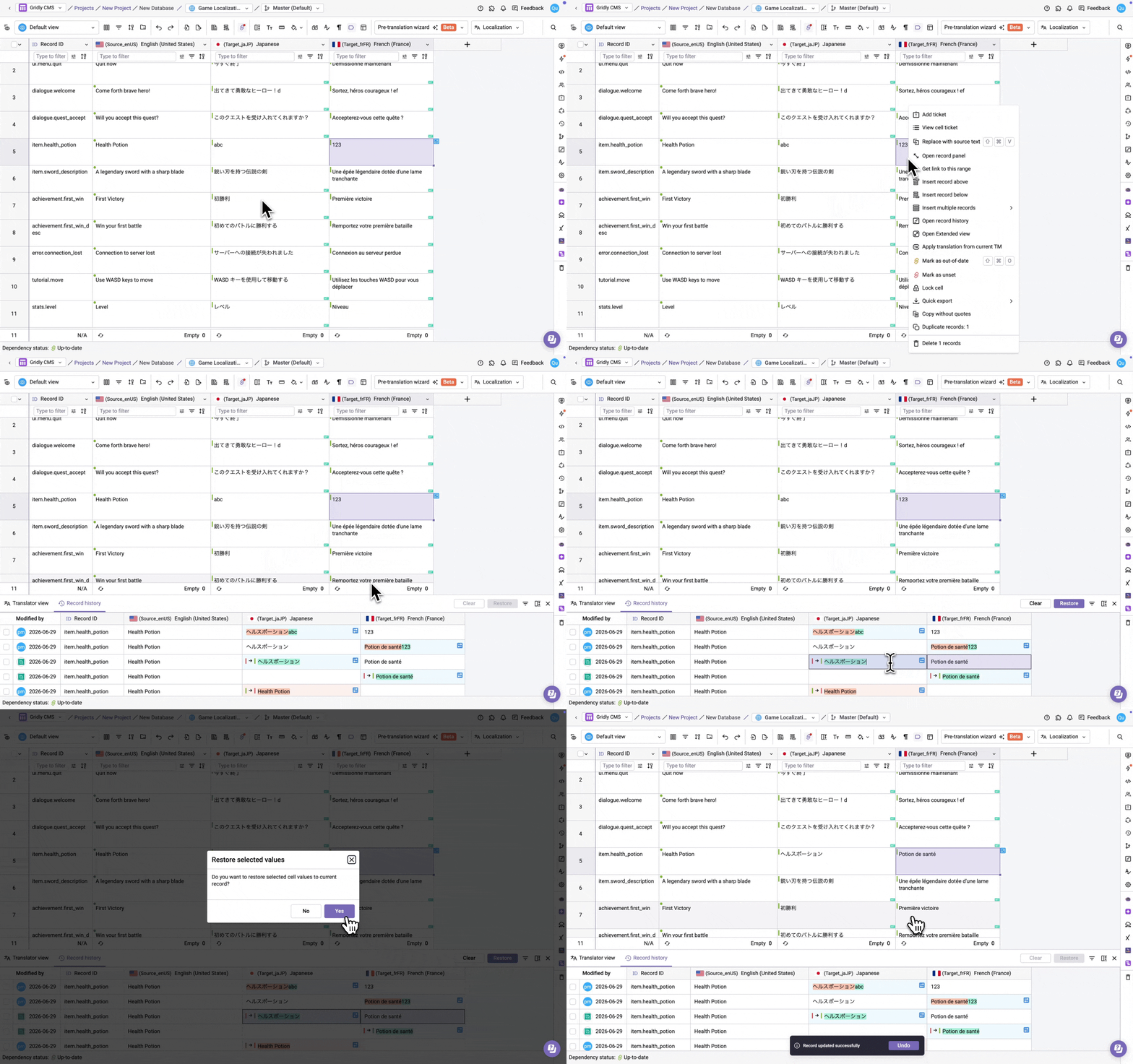
- Open Record history for a record.
- In the Record history panel, click a cell to select it. To select additional cells in the same row, Cmd+click (Mac) or Ctrl+click (Windows/Linux) each cell. To select all editable cells in a row at once, click the row's index cell.
- All selected cells must belong to the same row. Selections are limited to editable column types — system columns, reference, formula, selection, file, date/time, boolean, and code formatting columns are not supported.
- Click Restore.
- In the confirmation dialog, click Yes to apply the restore.
- To clear your selections without restoring, click Clear. Closing the Record history panel also clears all selections
Record history export (CMS module only)
Record History export provides a comprehensive log of all modifications made to your records, including who made the changes and when they occurred. You can filter this data and export it in your preferred format for analysis, documentation, or reporting.
- In a Grid, click the
 icon on the right-hand side toolbar.
- Switch to the Record history tab.

- Configure your export settings:
- Start date & End date: Select the time period for your log (maximum range: 60 days).
- Columns (optional): Choose which columns to include in your export. Leaving this empty will include all columns.
- Users & API keys (optional): Filter by specific users or API keys. Leaving this empty will include changes from all users and API keys.
- File format: Choose your preferred format (CSV or XLSX).
- Export type: Select how you want to view the changes:
- Standard export: Shows only the modified data without previous versions. This option is ideal when you just need to see what changed. Your exported log will look like the example below.

- Enhanced export: Displays both original and modified values side by side for easy comparison. Ideal for detailed audits or when you need to see both before and after states. Your exported log will include Old Value and New Value columns as shown below.

- Standard export: Shows only the modified data without previous versions. This option is ideal when you just need to see what changed. Your exported log will look like the example below.
- Click Export.