

Table of contents:
- Create new QA Check rule setting
- Assign QA Check rule setting
- Customize QA Check rule setting
- Run QA Check in the CAT Editor
- Ignore QA Check errors
- Related resources
This feature is available in the CAT and TMS modules.
QA Check (Auto QA) allows you to set up rules against which translations will be automatically checked. This article will guide you on how to configure QA Check to boost your localization quality assurance speed and quality while working in the CAT Editor.

Create new QA Check rule setting
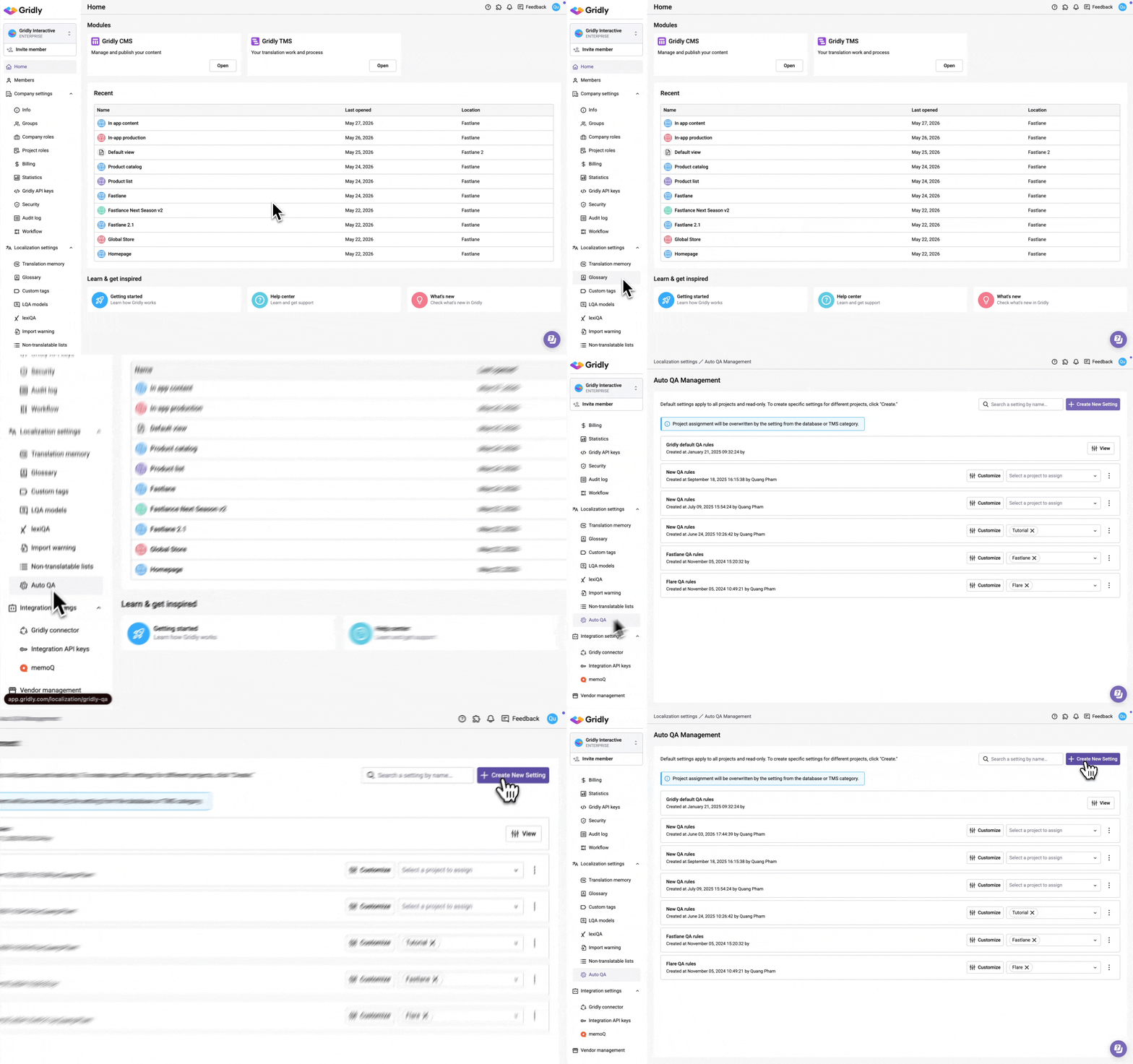
- In Gridly homepage, select Auto QA under Localization settings from the left-hand side menu.
- Click Create New Setting.
Assign QA Check rule setting
CMS module
Assigning QA Check rules setting to a Database makes it available to all Grids within that Database, allowing you to use QA Check in the Grids' CAT Editors.
- In a CMS Project, click
 next to the Database name.
 - Select Settings and switch to the Quality assurance tab.
- Click on Auto QA model choose the Auto QA rules setting you want to assign from the dropdown menu.
- Click Save.

TMS module
Assigning QA Checkrules setting to a Category makes it available to all Tasks within that Category, allowing you to use QA Check in the Tasks' CAT Editors.
- In a TMS Project, clicknext to the Category name.
- Select Settings and click Quality assurance.
- Click on Auto QA model choose the Auto QA rules setting you want to assign from the dropdown menu.
- Click Save.

Customize QA Check rule setting
- Open Localization settings, switch to Auto QA tab.
- Click the Customize button next to the rule set you want to edit.
- Here you will see 6 tabs representing different rule groups. Go through each tab and select the rules you want to include.
- Segment and terms: Checks for terminology consistency, translation completeness, and content-related issues within individual segments.
- Consistency: Ensures translation consistency by checking for uniform terminology usage and consistent translations of identical source segments.
- Inline tags: Validates proper handling and maintenance of inline tags.
- Spelling and grammar: Checks for spelling errors and grammatical mistakes in your translations.
- AI-assisted translation: Use AI-assisted translation to identify issues in your translations.
- Severity settings: Configure the severity level for each Auto QA rule. You can set each rule to one of three severity levels, including Error, Warning, and Information. Remember to Save your settings here.

Make sure to select at least one rule for your QA Check rule setting. If none is selected, you won't be able to run Auto QA checks.
For detailed error descriptions and example messages, consult the QA Check error reference guide.
Run QA check in the CAT Editor
- Open the CAT Editor.
- Click the
 button on the right-hand side toolbar to open QA check panel.
 - (Optional) Click the
 button and make sure Auto QA is selected.
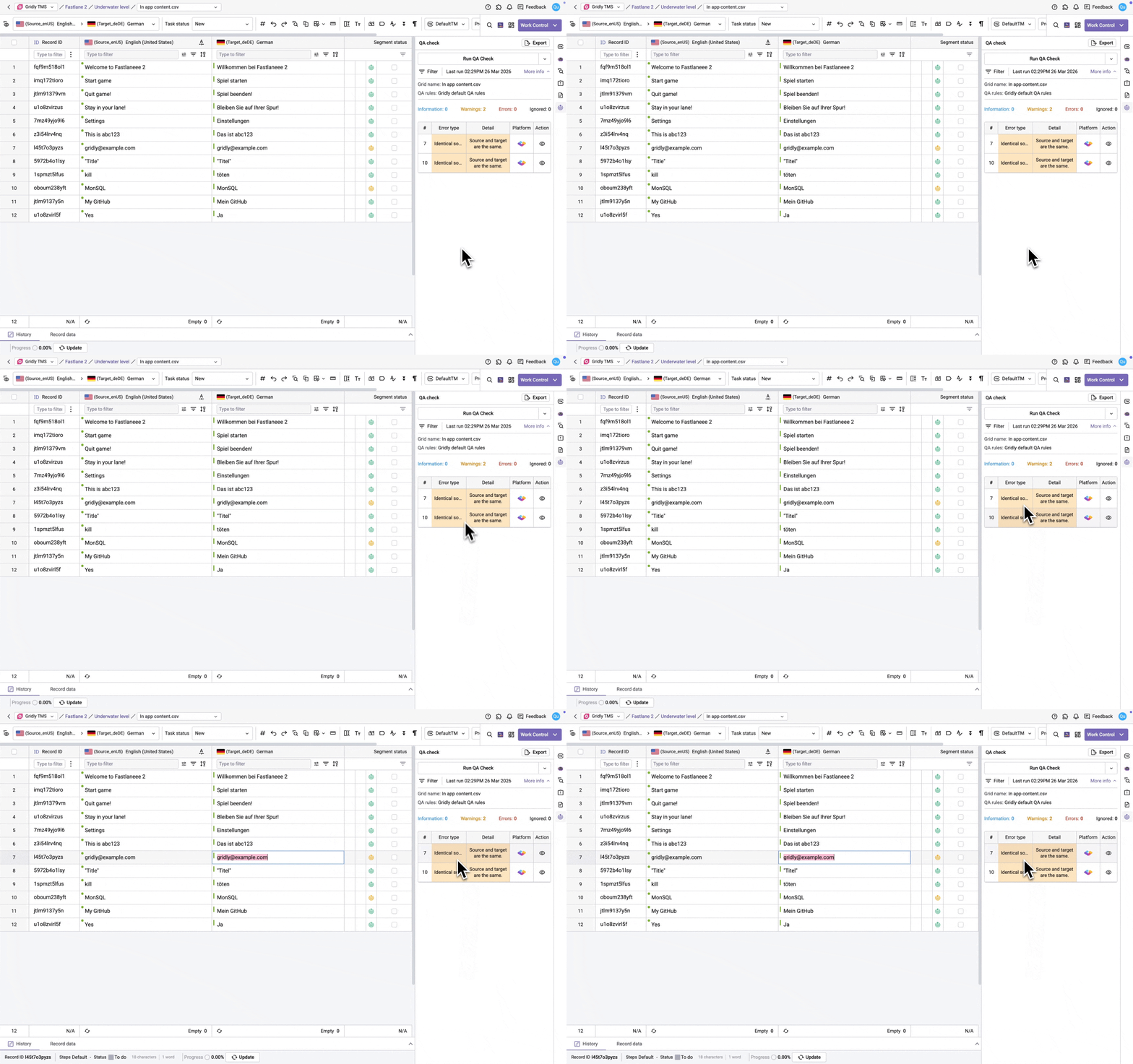
 - Click Run QA check.
When you click a QA error in the results list, the editor jumps to the corresponding segment and highlights the affected text in pink. The highlight does not block editing, and error details remain visible on hover. The highlight is removed when you edit the segment, click another QA error, ignore the error, or re-run QA check.
The following rule types do not trigger a highlight: AI check, empty target, repetition with empty target, TM translation, machine translation, and source equals target. Learn more about error types in this article: QA Check error reference guide.
Ignore QA Check errors
When running QA checks, you may encounter false positives or non-blocking issues that don't require immediate action. The Ignore error feature allows you to dismiss specific errors to clean up your QA results list and focus on relevant issues.
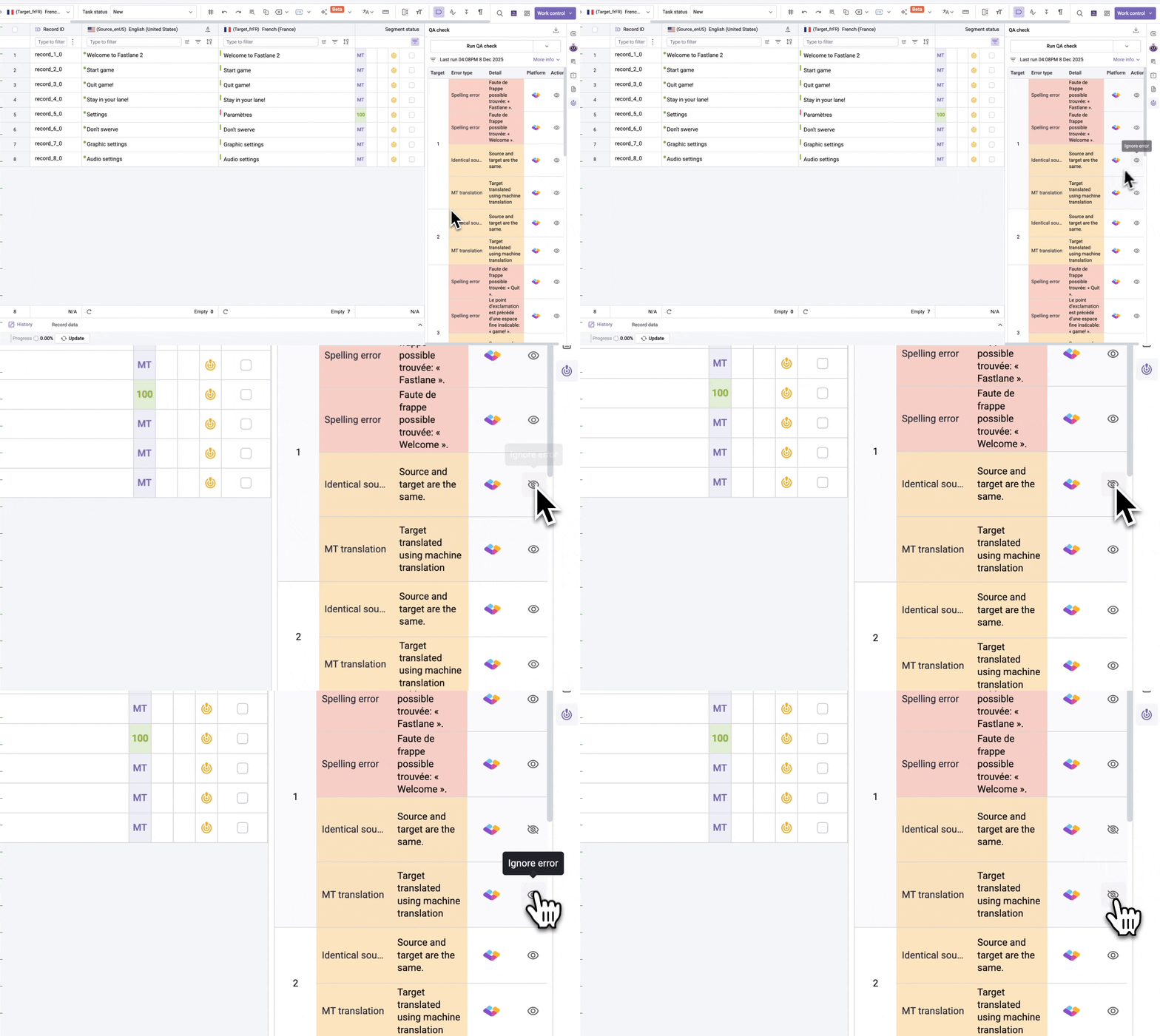
- Locate the error you want to ignore in the results table
- Click the
 icon
icon
What happens when you ignore an error:
- The ignored error remains visible in the results list
- Ignored errors are excluded from blocking actions such as submit work, transfer to next step, task delivery, or job delivery
- Ignored errors are remembered for that specific segment and will stay ignored if you run QA check again
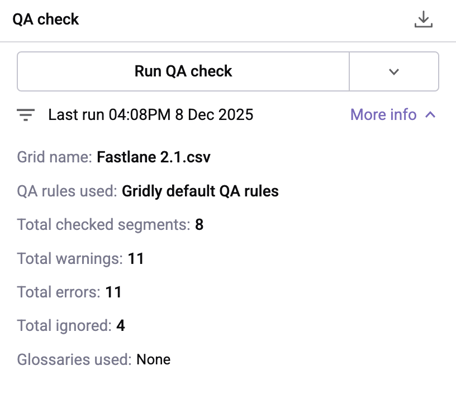
- Click More info to view the total count of ignored errors
Important notes:
- Ignoring an error only affects the current segment and error type
- If the same error occurs across repetitions (identical source and target text), ignoring one instance will ignore all identical repetitions. Similarly, un-ignoring one instance will un-ignore all identical repetitions.
- An error can only be ignored if the source and target texts remain unchanged and the same QA setting is used
- Errors generated before this feature was released cannot be ignored. Run a new QA check to enable the ignore function.