
Table of contents:
To access the Gridly API, you need API keys. Gridly supports two types of API keys: company API keys for company-wide use and personal API keys for individual members. This article will show you how to create and manage both types of API keys.
Only Owner, Admins, and custom Company roles with the Manage API keys privilege can access and manage company API keys. Managing personal API keys requires the Manage member privilege. Learn more in this article: Permission overview.
About API key security
For your security, Gridly shows each API key only once: when you create or regenerate it. After you close the dialog, the full key can’t be displayed or recovered.
Copy your API key right away and store it in a secure place, such as a password manager. If you lose a key, regenerate it to get a new one.
Each key starts with a prefix that shows its type, so you can identify it in your code or secret manager:
| Key type | Prefix |
|---|---|
| Company API key | gridly_ckey_ |
| Personal API key | gridly_pkey_ |
Company API keys
Creating company API keys
- In your Gridly Homepage, click Gridly API keys in Company settings section.
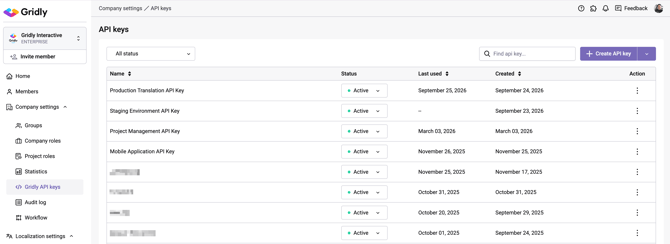
- Click Create API key.
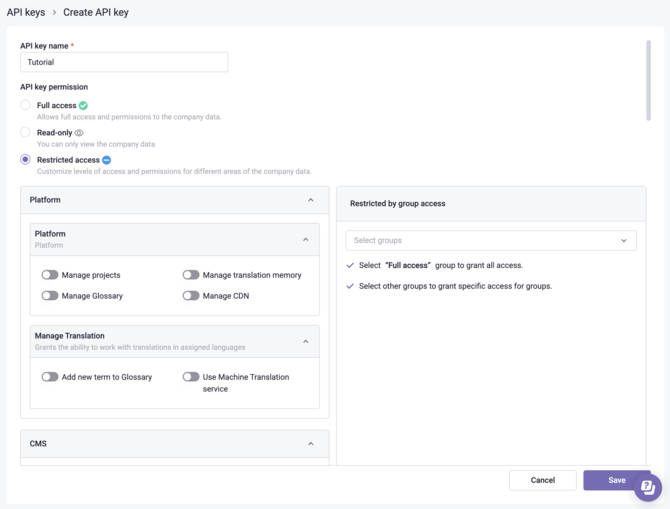
- You will be redirected to Create API Key page. Enter a name in API key name field.
- Select an option for API Key permission.
- Full Access: Users with this API key have full access and permissions to the Company data.
- Read-only: Users with this API key can only read company data without permission to write.
- Restricted Access: Users with this API key have limited access and permissions. You can set permissions for Platform, CMS, TMS, and CAT features, and limit access by user group.
- Click Save.
Managing company API keys
To edit, duplicate, regenerate, revoke, or delete an API key, click  on the corresponding key and select an option.
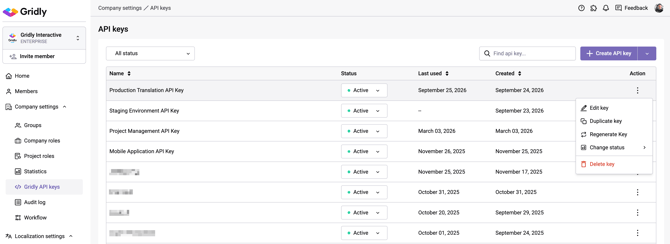
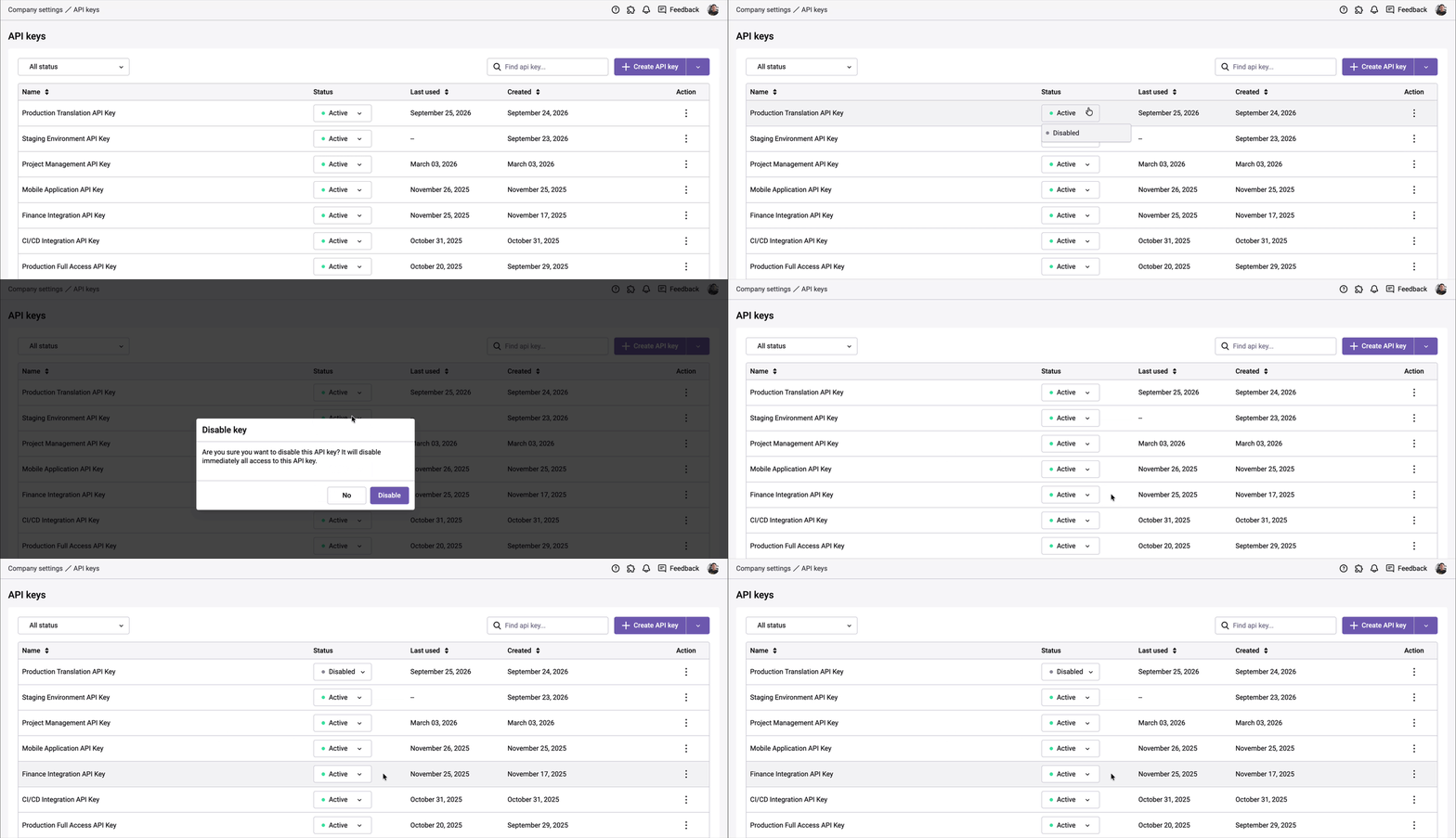
To temporarily disable an API key, click the status next to the key name and select Disabled. No requests can be made with this key until you change its status back to Active.
Regenerating a company API key
-
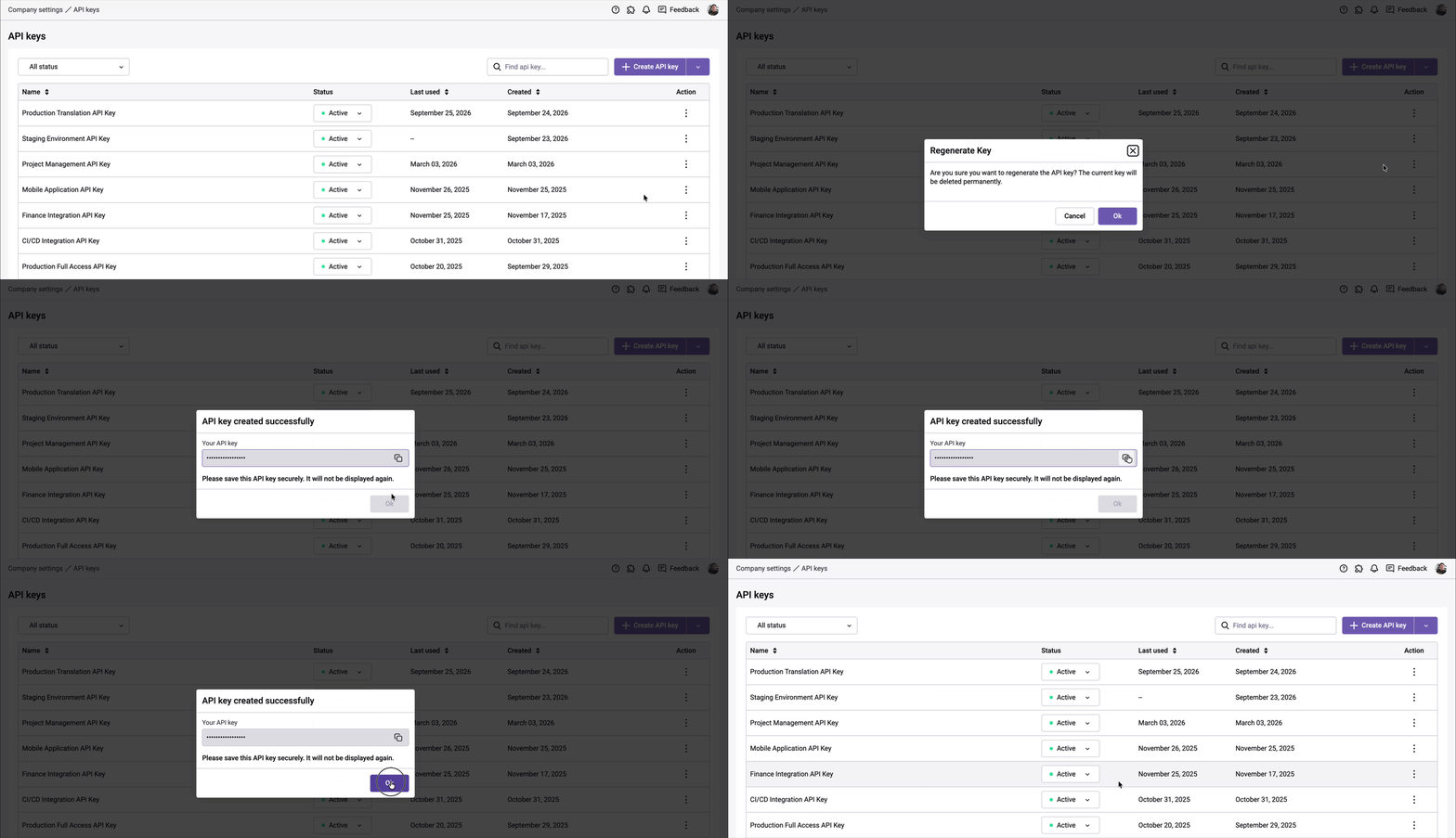
On the Gridly API keys tab, click ⋮ on the key and select Regenerate.
-
Click Regenerate to confirm.
-
Copy the new key from the dialog, then click Done.
-
Update your applications and integrations with the new key.
The current key stops working immediately after you regenerate it. Any application using it will need the new key.
Legacy company API keys
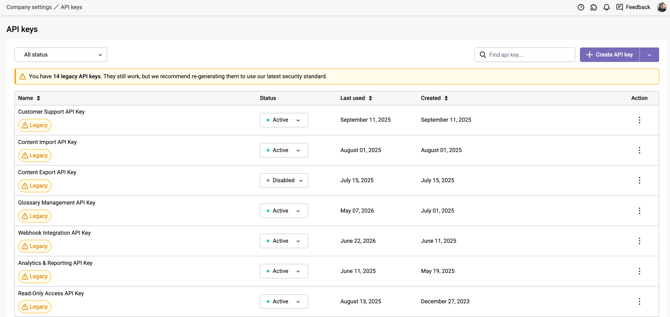
Company API keys created before Oct 20, 2026 use an older security standard. These keys are marked with a legacy badge on the Gridly API keys tab, and a banner shows how many legacy keys your company has.
Legacy keys still work. We recommend upgrading them to benefit from stronger protection for your data and integrations.
To upgrade a legacy key:
- Regenerate the key.
- Copy the new key and update your applications and integrations.
- Check that your integrations work with the new key.
- After you regenerate a legacy key, the legacy badge is removed.
- Legacy status applies to company API keys only. Personal API keys are not affected.
Personal API keys
Personal API keys are individual API keys assigned to each company member for their personal use with the Gridly API.
For Admins: Activate/Deactivate personal API keys
-
From Gridly Homepage, click Members on the left-hand side toolbar.
-
Find the member you want to activate/deactivate personal API key and click the
 icon in their row.
 -
Select Activate personal API key or Deactivate personal API key.

When a personal API key is deactivated, the member cannot use their personal API key for Gridly public API calls.
For Admins: Find personal API key owner
- In your Gridly Homepage, click Company settings.
- Select the Gridly API keys tab.
- Click the
 then select the Find personal API key option.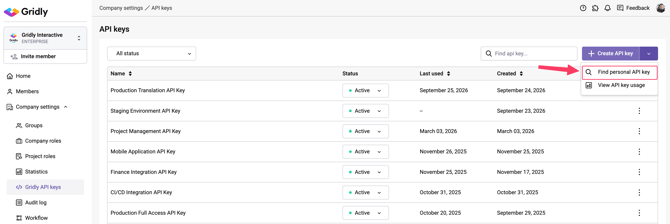
- In the search dialog, enter the personal API key you want to look up.

-
Click Search to view the key owner details including: Member name, Email address, Company role, Last used date.

For Users: Generating/Regenerating your personal API key
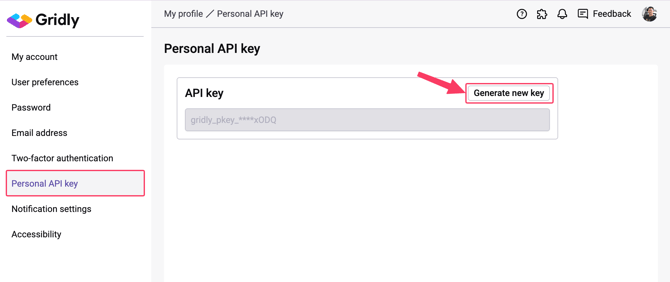
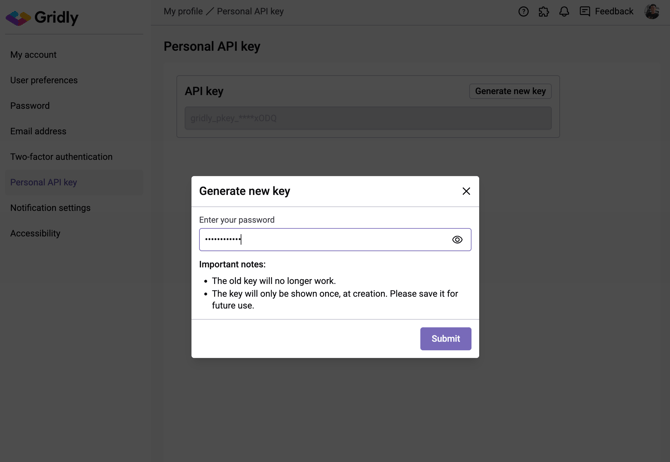
You manage your personal API key from your user profile. For security, you need to enter your password to generate or regenerate a key.
- Open your User profile and select Personal API key.
- Click Generate key, or Regenerate key if you already have one.
- Enter your password and click Confirm.
- Copy your API key from the dialog, then click Done.
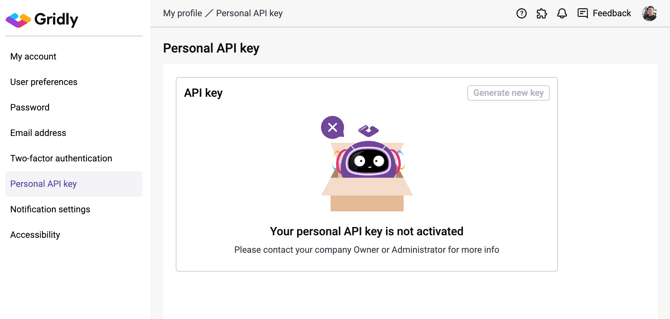
If your personal API key is deactivated, you will see the following message instead.
API usage report
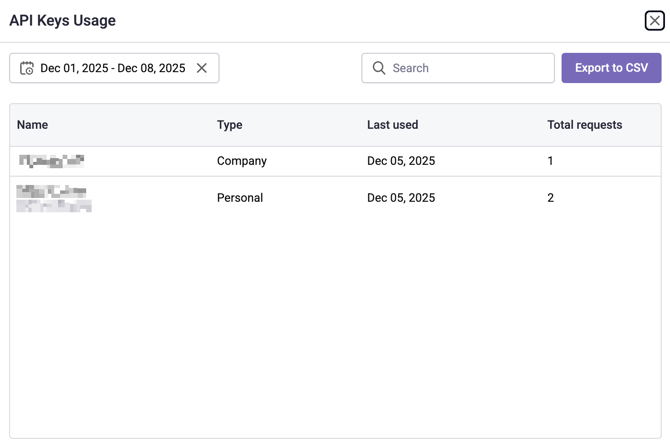
To view the API usage report, click the  button and select View API key usage.
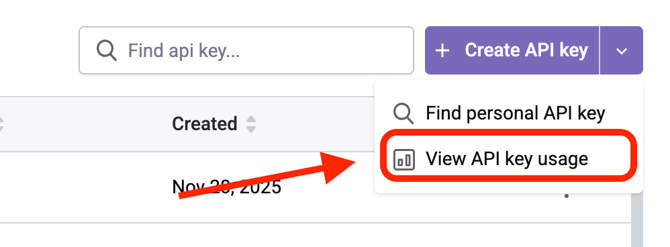
Here you can track the number of requests made by each API key and when it was last used. Click Export to CSV to download the report.